
Image, video and colour wallpapers in Scene by Zaweba
Scene by Zaweba's editor lets a scene's wallpaper be an image, a video, a web page, a Kinetion export or a plain colour, and builds the page for you.
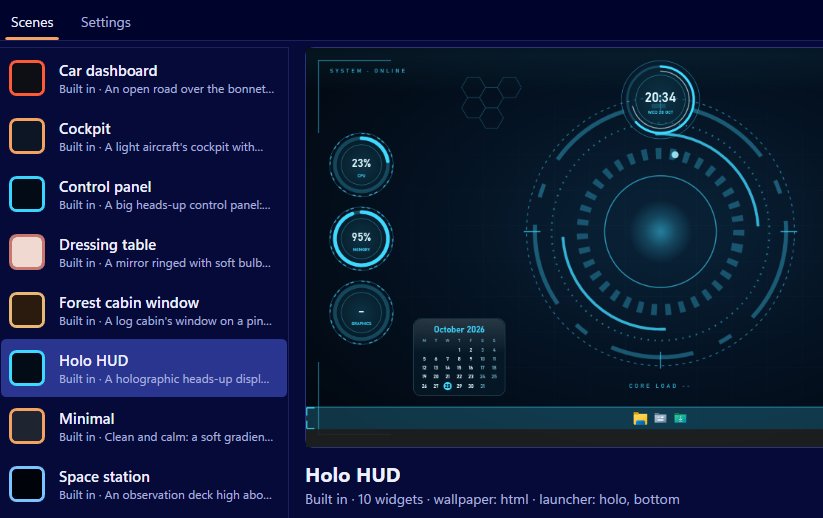
A scene doesn't have to start with code. In Scene by Zaweba, the editor lets a scene's wallpaper be an image, a video, a web page folder, a Kinetion export or a plain colour. Pick an image or a video and Scene writes the page that shows it for you, so a photo of your own garden or a looping clip can sit behind your icons in a couple of minutes.
The nine built-in scenes are drawn in HTML, CSS and SVG, which is what lets them animate and change with the time of day. That's great to look at, but when you're making your own scene, a favourite picture is often all you want behind the widgets.
The five kinds of wallpaper
Image is the simplest: a still picture filling the screen, with your widgets and launcher bar on top. It suits a calm desktop, and it's the lightest choice after a plain colour.
Video plays a clip behind the icons. Scene generates a page to play it, so you only need to choose the file.
Web page is a folder with an index.html, the same kind of wallpaper the built-in scenes use. FORMAT.md, opened from Help, describes how these pages work.
Kinetion export uses the folder written by Kinetion by Zaweba's File, Publish. Scene copies it into the scene and plays it filling the screen, autoplaying and looping.
Plain colour is exactly that: one colour, no animation, nothing to draw. It's a good base when the widgets are the point.
Setting a wallpaper
You can't change a built-in scene in place, because they're read-only. Make your own first, either with File, New scene, or by duplicating a built-in one with Scene, Duplicate (Edit makes a copy too). Then open it in the editor and set the wallpaper, choosing the type and the file or colour.
While you're there, set the scene's colours, font and launcher texture so the widgets suit the picture. Widgets are coloured by the scene's palette, with an optional highlight colour, so picking a palette from your image ties the whole desktop together. Press Preview on desktop to see it live, Stop preview to end it, and Save when you're happy.
Choosing well
Pictures with a busy area where your desktop icons sit will make the icons hard to read. Look for an image with a quieter area on the left, or wherever your icons live. The editor shows the scene as it will look on this PC, and you can also check it at 1080p, at 1440p with 150 percent scaling or at 1366 by 768.
For video, think about how much movement you can live with all day. A slow loop of rain on a window is pleasant; a fast cut montage gets tiring. Wallpapers pause automatically while a full-screen app or game runs, and can pause on battery if you tick that in Settings, which helps a laptop.
Sharing scenes made with your own pictures
Export a scene with File, Export (Ctrl+E) and you get a .zscene, a zipped scene folder with your picture or video inside. Imports are limited to 300 MB and 2000 files, so a long, high quality video may be too large to share; a shorter loop is kinder to the person importing it anyway.
Whatever you choose, it's all Scene's own window behind your icons. Switch the scene off and your normal Windows background is back, untouched by Scene by Zaweba.

