
Does Scene keep running when you close its window?
It can. With Keep Scene running in the notification area ticked, Scene by Zaweba stays on in the tray, with a scene menu on its icon.
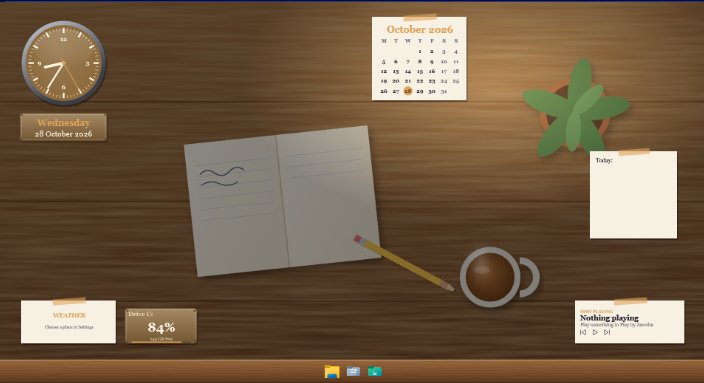
Closing the window doesn't have to stop Scene by Zaweba. Tick Keep Scene running in the notification area in Settings, and closing the main window leaves Scene running with its icon in the tray. Your scene stays on, and the tray icon gives you a scene menu, Arrange and Send feedback whenever you need them.
Most of the time you set up a scene once and then don't want the app window in the way. The tray is where it belongs.
Staying in the tray
Open Settings from the View menu or with Ctrl+,. Tick Keep Scene running in the notification area. From then on, closing the window hides Scene rather than quitting it.
If it's unticked, closing the window closes Scene, and Scene's windows go with it. The next time Scene starts, it remembers whether a scene was on and switches it back on.
What the tray icon does
Right-click the icon in the notification area and you get a scene menu, so you can switch scenes or switch one off without opening the main window. Arrange is there too, which puts a frame on every widget on the real desktop so you can drag and resize them. Send feedback is the third item. Between them they cover most of what you do with Scene once a scene is set up, which is why many people rarely open the main window after the first day.
The main window is only a click away there, so closing it costs you nothing.
Starting hidden
Scene can be started with --tray, which starts it hidden, straight into the notification area. That's useful if you add your own shortcut to start Scene, for example in your Startup folder, and don't want the window to appear each time.
There isn't a start with Windows option in Scene yet, so that shortcut is the way to have it start on its own for now.
One copy at a time
Only one copy of Scene runs at a time. If you start it again while it's in the tray, you won't get a second Scene fighting over the desktop. That's part of keeping things tidy: one set of windows, one record of what Scene changed, one tray icon. It also means a shortcut that starts Scene with --tray is harmless to run twice. If Scene is already there, nothing new appears and your scene carries on undisturbed.
Quitting properly
When you do want Scene gone, switch the scene off first if you like, then quit from the app. Switching off removes all of Scene's windows and leaves Windows as it was. If you'd turned on taskbar auto-hide, the taskbar is restored when the scene stops.
What it costs to leave running
Leaving Scene in the tray with a scene on is how most people use it, and it's designed for that. The wallpaper pauses while a full-screen app or game runs, and can pause on battery. With the Cockpit scene on two monitors, Scene used about 1.3 per cent of the machine on average over a minute. The Minimal scene doesn't animate at all, if you want it lighter still.

