
Choosing a launcher texture in Scene by Zaweba
Scene by Zaweba draws its launcher bar in log, desk, dashboard, chrome, holo, marble, panel or plain textures, or the scene's own image. Here's how to pick.
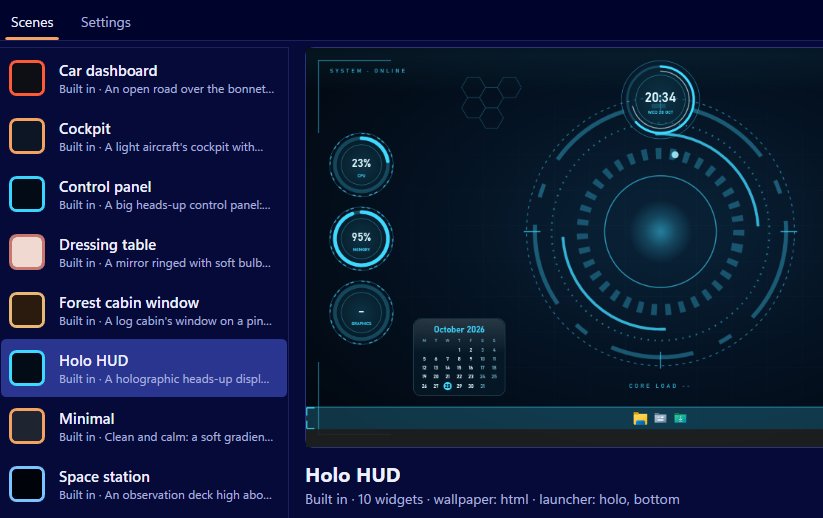
The launcher bar is the one part of a scene you touch all day, so its texture matters more than you'd think. Scene by Zaweba draws it in eight textures of its own: log, desk, dashboard, chrome, holo, marble, panel and plain. A scene can also use its own image instead.
All eight are drawn by Scene itself. There's no texture pack to download and nothing to install; they're part of the app.
What each texture suits
Log, as the name suggests, belongs with the Forest cabin window, whose launcher is a log. It suits nature scenes, warm colours and a slow wallpaper.
Desk goes with the Wooden desk scene and sits happily beside paper and plaque widget skins for a study or home office feel.
Dashboard is made for scenes like the Car dashboard, where the speedometer shows CPU and the rev counter shows memory.
Chrome suits dials and analogue widgets, and cockpit or retro looks.
Holo matches Holo HUD and Space station, and the hud widget skin with its cut corners, brackets and tick marks.
Marble is the elegant choice, a natural partner for the Dressing table or any light, formal scene.
Panel fits the Control panel scene and anything built around data feeds.
Plain is the one to use when the bar should almost disappear, as on a Minimal-style scene.
Changing the texture
Built-in scenes are read-only, so make your own first: File, New scene, or Scene, Duplicate on a built-in one. In the editor, set the launcher texture, along with its position and size. Press Preview on desktop to see it on your real screens, then Save.
To use your own picture, give the scene its own launcher image. That's how you'd make a bar of stone, brick, fabric or anything else to match a wallpaper you've made. FORMAT.md, opened from Help, Making your own scenes, documents skins and textures for people building scenes by hand.
Matching the rest of the scene
A texture works best when it agrees with the wallpaper and the widget skins. The editor lets you set all three in one place, plus the scene's colours and font, so it's easy to check the whole look together. A good rule is to pick the wallpaper first, then the texture that could plausibly exist in that world, then widget skins to match.
Think about the bar's position too. A log looks natural along the bottom, like a windowsill; a holo strip works floating; a desk edge reads best at the bottom. Vertical bars on the left or right suit plainer textures, since detail can look odd turned on its side.
Common mistakes
Don't choose a texture that clashes with your icons. Busy textures like marble and log can make small coloured icons harder to pick out, so if your shortcuts are mostly colourful app icons, a calmer texture helps. Don't forget other people's screens either: if you're sharing a scene, check it with the editor's other preview sizes.
Your shortcuts aren't affected by the texture. Items on the launcher belong to you and stay across scenes, so switching scene just changes what the bar is made of. That's the nice thing about Scene by Zaweba's launcher: one set of shortcuts, a different material for every mood.

