
Settings and the light or dark theme in Scene by Zaweba
A tour of Scene by Zaweba's Settings: pausing, taskbar, launcher, sounds, clock, Fahrenheit, weather place and the tray, plus the light or dark theme.
Scene by Zaweba keeps its settings in one short window, and it's worth a look early on, because a few ticks change how the whole desktop behaves. Open it with Ctrl+, or from the View menu. The same menu has a light or dark toggle (Ctrl+T) for Scene's own window.
Settings are global: they apply whatever scene is on. Per scene choices, like the wallpaper, widgets and launcher texture, live in the editor instead.
Light or dark
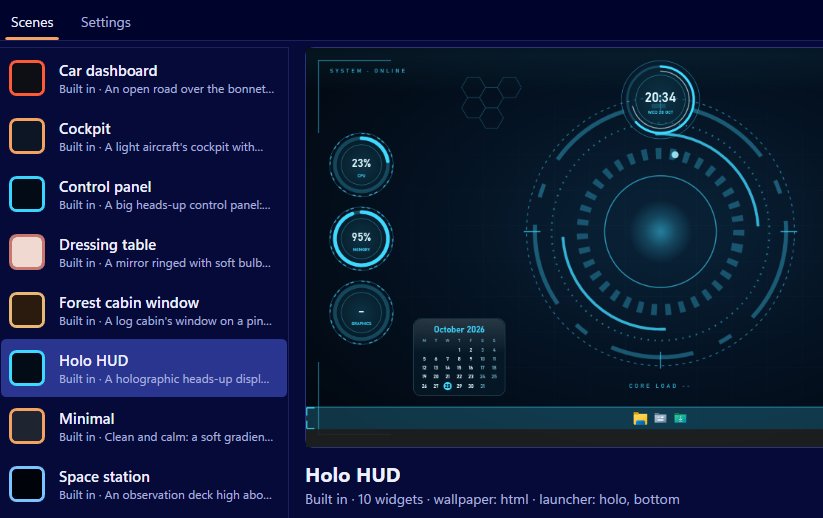
The theme toggle changes Scene's window and editor, not your scene. Dark is easier on the eyes when you're editing a dark scene like Holo HUD at night; light suits a bright scene like the Dressing table. Press Ctrl+T to flip between them.
Pausing
Two options decide when the wallpaper rests. Pause for full-screen apps stops the wallpaper while a full-screen app or game runs on either monitor. Pause when on battery stops it while a laptop is unplugged. Widget data keeps updating while the wallpaper is paused, so your clock and readings stay right.
Most people should leave the full-screen pause on. It means a game or a full-screen video gets the machine's attention, and you never have an animated forest drawing away behind a film nobody can see. Tick the battery one on a laptop if you'd like the battery to last; on a desktop PC it makes no difference, so it can stay off.
Taskbar and launcher
Auto-hide the Windows taskbar hides the taskbar while a scene is on, using Windows' supported setting, and restores it when the scene stops. It's off by default.
Keep the launcher bar on top of other windows makes the launcher a dock that stays visible over everything, rather than sitting on the desktop under your windows. The two work well together.
Sound, time and weather
Play the scene's ambient sound turns on the scene's loop (hum, birdsong, rain, space or room, or the scene's own audio), with a volume. It's off by default.
24-hour clock changes every clock widget. Show temperatures in Fahrenheit changes the weather widget's units.
The weather place is set here too. Type a place name, search, and choose the right one from the list. Weather comes from Open-Meteo with no key and no IP location, and only while a weather widget is showing.
Running in the tray
Keep Scene running in the notification area lets you close the window without switching the scene off. The tray icon then has the scene menu, Arrange and Send feedback. It's the setting that turns Scene from an app you open into part of the desktop, so most people will want it on once they've settled on a scene.
A good starting point
A good first setup is: full-screen pause on, battery pause on for a laptop, tray on, 24-hour clock to taste, your weather place chosen, and sounds left off until you've tried a scene quietly. Add taskbar auto-hide later if you find you want a cleaner desktop.
None of these settings change Windows itself except the taskbar auto-hide, and that one is recorded so Scene can restore it, even after a crash. Everything else is Scene's own behaviour. Switch a scene off and Scene by Zaweba leaves Windows exactly as it found it.

