
Using Scene by Zaweba across several monitors
Scene by Zaweba gives each monitor its own wallpaper window and lets you place widgets per monitor, even when the screens use different scaling.
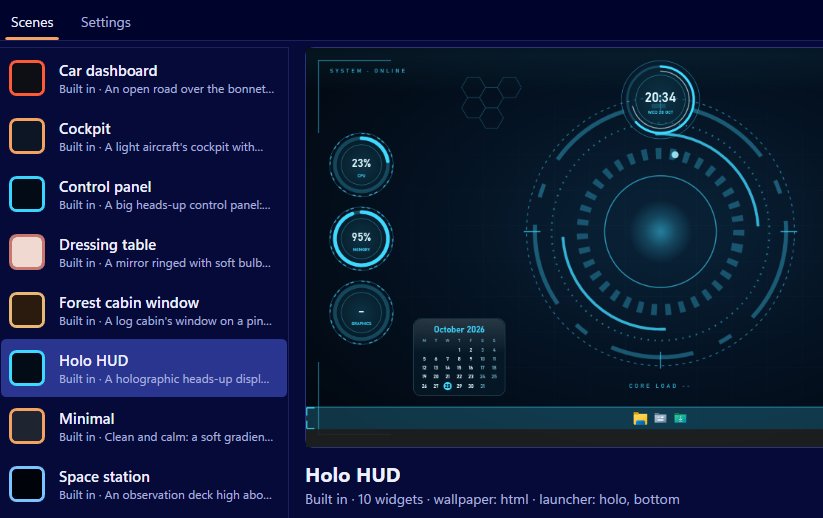
Two screens are where a themed desktop really shows off. In Scene by Zaweba each monitor gets its own wallpaper window, and every widget can be placed on whichever monitor you like, so a cockpit can stretch its instruments across your desk rather than crowding one screen.
Multi-monitor setups are rarely tidy. A laptop screen at 150 percent scaling next to a big external monitor at 100 percent is common, and plenty of desktop tools get confused by it: widgets land in the wrong place, drift after a restart or come out the wrong size. Scene was built with that mix in mind.
How Scene handles more than one screen
Every monitor has its own wallpaper window sitting behind the desktop icons. The scene's wallpaper, whether it's a live web page, an image, a video, a plain colour or a Kinetion export, plays on each.
Widgets are placed per monitor. Their positions are worked out in physical pixels for each monitor, which is what lets different scaling on each screen work properly. The layout maths was tested at 100 and 150 percent. When you save an arrangement, Scene stores each widget's anchor, offsets and size rather than a raw screen position, so positions hold up when a resolution changes.
Setting up widgets on each monitor
The quickest way is Arrange mode. Choose Arrange on desktop (from the tray menu, the Arrange on desktop button or the Scene menu) and every widget gets a frame on the real desktop, on whichever monitor it lives. Drag a widget from one screen to the other, resize it with the corner grip, or right-click to remove it. Widgets snap to a 10 pixel grid and to other widgets' edges; hold Alt to place one freely. Press Done to save.
For finer control, open the editor. Each widget has a monitor setting along with its skin, caption, anchor, offsets and size. The editor can preview the scene as it will look on this PC, or at 1080p, at 1440p with 150 percent scaling, or at 1366 by 768, which is a handy check if you share scenes with people whose screens differ from yours.
Ideas for splitting a scene
A sensible pattern is to keep the busy widgets on the screen you glance at, and leave the main working screen calm. System readings and a now playing widget on the side monitor; a clock and the launcher bar on the main one. The Control panel scene, with its data feeds, suits a second monitor that's always in view. The Car dashboard, where the speedometer is CPU and the rev counter is memory, looks good spread across two.
Mistakes to avoid
Don't place widgets on a monitor you sometimes unplug and then wonder where they went; arrange for the setup you use most, and use the editor's monitor setting to move them back if needed. Don't judge scaling problems from the editor's preview alone. Preview on desktop shows the scene live on the real screens, which is the honest test.
It's also worth knowing what happens with a game. The wallpaper pauses automatically while a full-screen app or game runs on either monitor, and widget data keeps updating. So gaming on one screen doesn't leave the other one busy drawing animation behind your back.
Light enough for two screens
Two wallpapers mean two web views, so there is a cost. In Scene's own measurement, the Cockpit scene on two monitors used about 1.3 percent of the machine on average over 60 seconds. Memory was around 330 MB for Scene itself plus about 290 MB for the two monitors' wallpapers. If you'd like it lighter, the Minimal scene doesn't animate at all.
When you switch Scene off, the wallpaper windows on every monitor go, and Windows is left exactly as it was. Scene by Zaweba only ever draws its own windows.

