
Keeping notes on your desktop with Scene by Zaweba
Scene by Zaweba's notes widget saves its text as you type, keeps it in notes.json, and carries it across when you copy a scene, so reminders stay put.
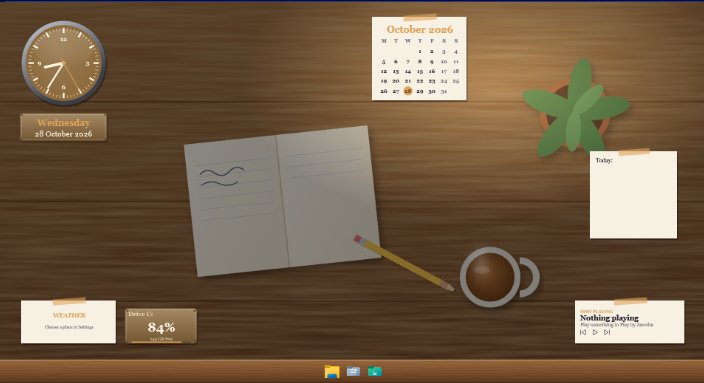
A note on the desktop is the oldest reminder system there is, after the paper one stuck to the monitor. Scene by Zaweba's notes widget gives you one that matches your scene, and saves itself as you type, so there's no save button to forget.
It's a small widget, but it changes how a themed desktop feels. Instead of being only something to look at, the desktop holds things you need: today's three jobs, a phone number you keep looking up, the name of that book.
How it saves
The text is saved as you type. It's kept in a file called notes.json in Scene's data folder, alongside your own scenes. When you copy a scene, for example by duplicating it to make a variation, the notes are carried across to the copy, so you don't lose what you'd written just because you changed the look.
Because the notes live in a plain file in your own data folder, they're not tied to any account and never leave your PC.
Giving it a look
The notes widget works in every skin, like all of Scene's widgets. The paper skin is the natural one, especially on the Wooden desk or the Dressing table scene. On a dark HUD scene, a hud skin keeps the brackets and tick marks consistent with the rest. Plaque suits the more formal scenes.
The widget takes the scene's palette, with an optional highlight colour, and you can set a caption so it reads "Today" or "Shopping" rather than just "Notes". For something completely your own, a face image in SVG or PNG can be used.
Placing it
In Arrange mode, the note gets a frame on the real desktop. Drag it where you want, resize it with the corner grip, and let it snap to the 10 pixel grid or other widgets' edges (Alt for free placement). Press Done, and Scene saves the position as an anchor with offsets and a size, so it stays sensible if your screen resolution changes.
Think about where windows sit. Widgets live on the desktop, under your windows, so a note in the middle of the screen is hidden whenever you're working. A strip along one side, or a second monitor if you have one, keeps it visible.
Good uses for it
Short lists work best: a few lines you'll read many times a day. Things like a morning plan, extension numbers, the order of jobs for a print run, or a quote you like.
It also works well as part of a scene you share. If you're giving a friend a scene, a note with a line on how you meant it to be used is a friendly touch. Mind what's in it before you export.
What it isn't
The notes widget is a note, not a document. For longer writing, a proper editor is better. The widget's strength is that it's always there and always saved, behind your windows, in the style of your desktop.
Turning a scene off hides the widget along with Scene's other windows, but the notes themselves stay in notes.json. Switch the scene back on and your text is waiting where you left it. Scene by Zaweba remembers whether a scene was on, too, and switches it back on at the next start.

