
How to pause your live wallpaper while you play games
Scene by Zaweba pauses its live wallpaper whenever a full-screen game or app runs. Here is where the setting lives and what keeps running.
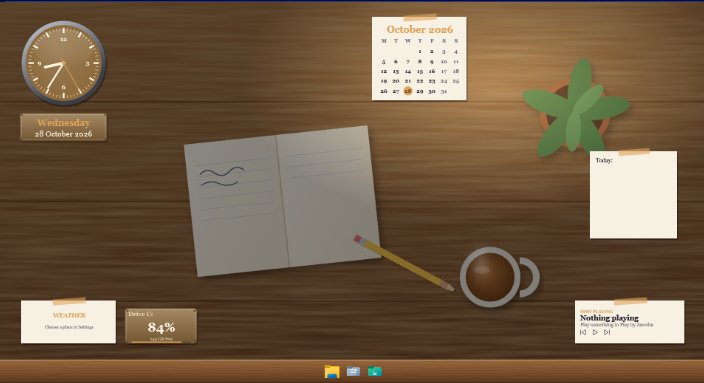
Open Settings in Scene by Zaweba and make sure the box called Pause the wallpaper while a full-screen app or game is running is ticked. With that on, the live wallpaper stops drawing as soon as a game or any other full-screen program takes over a monitor, and it starts again when you come back to the desktop. It works on either monitor if you have two.
A live wallpaper is a moving picture behind your icons, and while you can see it that's the whole point. Once a game fills the screen you can't see it at all, so there's no reason for it to keep drawing frames. This setting is how Scene steps out of the way.
Finding the setting
Settings is on the View menu, or press Ctrl+, from Scene's main window. The pause options sit together near the top, alongside the other choices about how Scene behaves on your PC. The full-screen pause is the one you want here. It's a plain checkbox, so there's nothing to tune: ticked means pause, unticked means the wallpaper carries on drawing behind whatever you're doing.
Leave it ticked unless you have an unusual reason not to. Some people run a borderless game on one screen and like to glance at an animated wallpaper on the other, and in that case you might experiment, but for most people the default is right.
What carries on while the wallpaper rests
Only the wallpaper pauses. Widgets keep updating, so a CPU dial, a weather panel or a data feed is still fresh when you come out of the game. That matters if you use a gauge to see how hard your machine was working, because the reading will be current the moment you look.
The launcher bar and any notes widget stay exactly where they were too. Nothing about your scene is switched off or reset. It simply stops animating the background until you need it again.
Why it helps your games
Scene is already light. Its own measurements with the Cockpit scene on two monitors came to about 1.3 per cent of the machine on average over a minute, and the Minimal scene doesn't animate at all. Even so, every frame a wallpaper draws is a frame of work your graphics card and processor do for something you can't see. Pausing it hands that time back to the game.
There's also a frame-rate cap on every scene, set in the scene itself, which limits how often the wallpaper draws even when it is on show. The cap covers both the page's own animation loop and its CSS animations. Between the cap and the full-screen pause, a scene costs very little while you play.
If you play on a laptop
The same Settings panel has a second pause option, Pause the wallpaper when the PC is on battery. Gaming on battery is hard work for a laptop already, so it's sensible to tick that one as well. The two settings are independent, and you can use either or both.
Choosing a scene that suits a gaming PC
Gamers often like the look of Cockpit, Holo HUD or Space station, which use instrument gauges, glowing rings and HUD panels for CPU and memory. They make a desktop feel like part of a game without any game software involved. If you'd rather the desktop stayed as quiet as possible, the Minimal scene has a gradient, a big clock, the date and the weather, and it doesn't animate at all, so there's nothing to pause in the first place.
If you ever want the scene gone completely, Switch on or off (Ctrl+Space) removes all of Scene's windows and leaves Windows exactly as it was. For everyday play, though, the full-screen pause does the job without you having to think about it.

