
How to save battery with a live wallpaper
Tick one box in Scene by Zaweba's Settings and the live wallpaper pauses whenever your laptop runs on battery, while widgets keep updating.
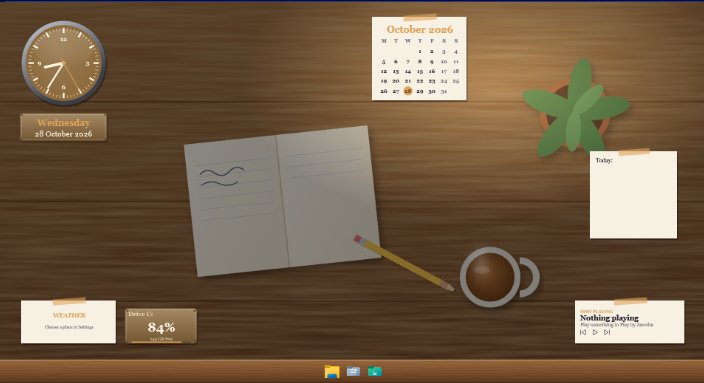
To save battery, tick Pause the wallpaper when the PC is on battery in the Settings of Scene by Zaweba. When you unplug, the live wallpaper stops drawing, and when you plug back in it carries on. Your widgets keep updating either way, so the clock, weather and system readings stay correct.
An animated wallpaper is lovely on a desk with the charger in. On the train it's a small, steady drain you didn't ask for. This option lets you have both without remembering to change anything.
Turning the option on
Open Settings from the View menu or with Ctrl+,. You'll see two pause options side by side. One pauses the wallpaper when a full-screen app or game is running, and that one is on to begin with. The other pauses it on battery, and you choose whether to tick it. Tick it and close Settings. There's nothing else to set.
The two are separate, so a laptop can use both: the wallpaper rests during a full-screen film or game, and again whenever the charger is out.
Picking a scene that sips power
Some scenes move more than others. The Minimal scene is the gentlest of the nine that come with Scene. It shows a time-of-day gradient, a big clock, the date and the weather, and it doesn't animate at all, so on battery it costs almost nothing even with the pause turned off.
The richer scenes, such as Cockpit or Space station, move more. They are still light by design: on a test with Cockpit across two monitors Scene used about 1.3 per cent of the machine on average over sixty seconds. Each scene also has a frame-rate cap that covers its page animation and CSS animations, so a wallpaper never draws faster than its maker intended.
If you build your own scene in the editor, a still image or a plain colour wallpaper is the most frugal choice. A video or a busy web page wallpaper will work harder whenever it's on show.
Other habits that help
Widgets are cheap to run because they are native windows rather than web pages, but a few of them do reach out for data. The weather widget fetches only while it is showing, every 30 minutes. Data feed widgets poll the addresses you give them, at whatever refresh you set (30 seconds at the least, five minutes by default). If you're travelling and don't need a feed, a longer refresh is kinder to the battery.
Scene's system readings for CPU, memory and so on come from Pulse by Zaweba when it's running, and from Scene's own counters otherwise. The GPU counter is only read while a GPU widget is on show, so a scene without one doesn't pay for it.
When you want nothing running at all
Sometimes you just want the plain desktop back for a long journey. Select the scene in the Scenes tab and choose Switch on or off, or press Ctrl+Space. Scene removes all of its windows and leaves Windows as it was. Switch it back on when you're plugged in again, and if Scene was running a scene when you last closed it, it remembers and puts it back at the next start.
For most people, though, the battery pause is enough. Tick it once and forget about it.

