
How to put sticky notes on your Windows desktop
Scene by Zaweba has a notes widget that sits on your desktop and saves its text as you type, styled to match whichever scene you use.
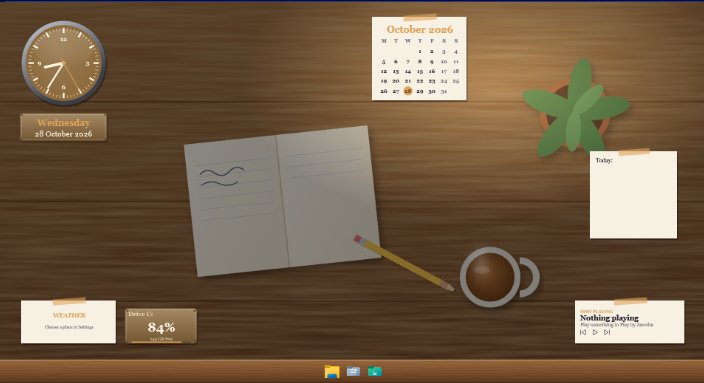
Add a notes widget to your scene in Scene by Zaweba and type straight into it. The text is saved as you type, so there's no save button to forget, and the note stays on your desktop in the scene's own style. It's a quick way to keep a shopping list, a phone number or today's three jobs in view.
A note on the desktop works because you see it every time you minimise something. It doesn't need to be clever, it needs to be there.
Adding a note
You can add a notes widget in two ways. In the editor, add the widget and set its skin, caption, size, anchor and offsets, and which monitor it should sit on. Or use Arrange mode on the real desktop, which you start from the tray menu, the Arrange on desktop button or the Scene menu. A floating bar appears with Add widget, Cancel and Done. Add the note, drag it where you want it, pull the corner grip to size it, and press Done.
Widgets snap to a 10 pixel grid and to the edges of other widgets, which keeps things tidy. Hold Alt if you want to place it freely.
If the scene you're using is one of the nine built-in ones, Scene won't change the original. Arranging a built-in scene saves your layout as a copy with "(my layout)" in its name, and in the editor you use Scene > Duplicate first.
Giving it the right look
Every widget kind works in every skin. For a note, the paper skin is the obvious choice and suits the Wooden desk and Dressing table scenes. A plaque reads well on a dark wallpaper. On Holo HUD or Control panel, a HUD skin with cut corners and brackets makes the note look like part of the display. The widget takes the scene's colours, with an optional highlight colour.
Where the text is kept
Notes are saved in a file called notes.json in Scene's data folder on your PC. Nothing is sent anywhere. When a scene is copied, for example when you duplicate a built-in scene to customise it, the note text comes along with it, so you don't lose what you'd written.
Notes widgets are native windows rather than web pages, which makes them cheap to run and positioned exactly. They sit on the desktop under your other windows, like the rest of Scene's widgets.
Using notes well
A few short notes work better than one long one. A note at the edge of the screen for things to do today, and another for numbers you keep looking up, is easy to scan. Keep the text short enough to read without scrolling.
If your scene has a clock and calendar nearby, a note beside them becomes a small daily planner on the desktop. With two monitors, put it on the screen you use for email or messages, so it's in view when you need it.
Switching scenes
Notes belong to scenes, so if you switch to a different scene you'll see that scene's widgets. If you want your note everywhere, add a notes widget to each scene you use. When you want a bare desktop for a while, Switch on or off (Ctrl+Space) removes all of Scene's windows and puts Windows back as it was. Your note text stays saved for next time.

