
How to show the temperature in Fahrenheit on your desktop
In Scene by Zaweba, tick Show temperatures in Fahrenheit in Settings and the weather widget on your desktop switches from Celsius.
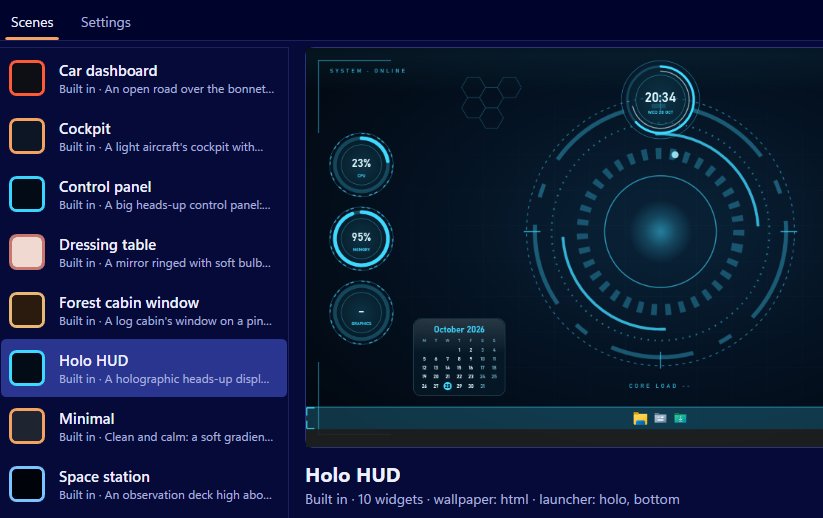
Fahrenheit is a single checkbox away in Scene by Zaweba: open Settings and tick Show temperatures in Fahrenheit. The weather widget then shows temperatures in Fahrenheit instead of Celsius on whichever scene you're using. Untick it to go back. It's a single setting for the whole app, so every scene follows it.
Most of the world reads Celsius and the United States reads Fahrenheit, and plenty of people simply grew up with one or the other. A weather widget that shows the wrong one is no use at a glance, so it's worth the ten seconds.
Where the setting is
Settings is on the View menu, or press Ctrl+, from Scene's main window. The temperature option sits with the other display choices, such as the 24-hour clock. Tick it, close Settings, and the weather widget updates.
Setting your place at the same time
While you're in Settings, check the weather place. Type a place name, search, and choose the right one from the list that comes back. The weather comes from Open-Meteo with no key and no location guessing, so the place you pick is the only thing Scene uses. If you've moved, or the forecast doesn't look like your sky, choose again.
The weather is fetched only while a weather widget is on show, every 30 minutes, and five minutes after a failed try.
Getting a weather widget on the desktop
If your scene doesn't have weather yet, add a weather widget. The Minimal scene already includes it, with a big clock and the date. In other scenes, use the editor or Arrange mode: add the widget, drag it into place, size it with the corner grip and press Done. Built-in scenes are read-only, so Scene saves your changes as a copy named with "(my layout)".
Every widget kind works in every skin. A digital readout is crisp for a single figure. A dial or ring looks good in Cockpit or Car dashboard. A plaque or paper skin suits the Wooden desk.
Other temperatures
The Fahrenheit setting is about the weather. If you'd like your PC's own temperatures on the desktop, those come from Pulse by Zaweba. Scene's system widgets read Pulse's readings when it's running, and temperatures and fans need it.
If you use data feeds for your own figures, units there are set per feed. Each feed has a prefix and units option, so you can label a figure in whatever way makes sense.
Pairing it with the clock
People who prefer Fahrenheit often prefer a 12-hour clock too, and people who read Celsius often use 24 hours, though not always. Both options are in the same Settings panel, so set them together and your clock and weather will read the way you think. Small as they are, those two settings make the desktop feel like yours. If you share a scene with a friend abroad, there's no need to change anything for them. The units are a setting on each PC rather than part of the scene, so the same .zscene file shows Celsius on one desktop and Fahrenheit on another, each following its owner's choice.

