
Using Test the feed now in Scene by Zaweba
Scene by Zaweba's Test the feed now button fetches your data feed and lists every value in the reply with its path, so you can pick the right one to show.
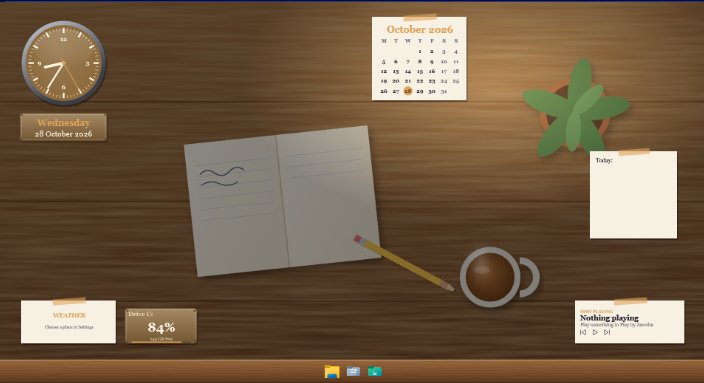
Setting up a data feed is mostly a matter of answering one question: which value in the reply do you want to show? Scene by Zaweba's editor has a button for exactly that. Test the feed now fetches the address you've typed and lists every value in the reply with its path, so you choose from what's really there instead of guessing.
Feed widgets show a figure from any web address that returns JSON or plain text: orders today, a stock count, a temperature from a home sensor, the number of open tickets. JSON replies are often nested several levels deep, and writing the path to the right figure by hand is where most people get stuck.
What the button shows
Press Test the feed now and Scene fetches the reply once, then lists each value with the path that reaches it. Paths look like orders.today, items[0].count, days[-1].orders or data.length. The first means the today field inside orders. The second means the count in the first item of a list. The third means the orders figure in the last entry of a list of days, handy for a daily series where the newest day comes last. The fourth is the length of a list, a quick way to show how many things there are.
You copy the path you want into the feed's path field and the widget shows that figure.
Start to finish
Open your scene in the editor (built-in scenes are read-only, so duplicate one or start a new scene first). Add a data feed widget, or select one of the example feeds in the Control panel scene, which has Orders today, Low stock and Revenue today ready with empty addresses.
Fill in the address. If the service needs an API key, put it in the headers field. You can use {today} in the address when a service expects today's date in it. Then press Test the feed now and read the list.
Pick the main value's path. A feed widget can also show up to six more values from the same reply, so if the list shows orders, revenue and returns side by side, you can show all three from a single fetch.
Making the figure readable
Once the path is right, the rest is presentation. Add a prefix and units, choose a number format (auto, compact, or a .NET format), set a range if the widget is a ring, dial or bar, and add a sparkline of recent values if you'd like to see the trend. The refresh can be as short as 30 seconds; the default is 5 minutes, which is right for most business figures.
When the test shows an error
If the list doesn't appear, the error tells you why in a few words, such as Not allowed (401), which usually means the key or header is wrong. Check the address in a browser if the service allows it. A feed with no address shows Set the address in Edit and doesn't try to fetch anything.
Feeds send only the address and headers you typed, with no cookies. There's a 20 second timeout, a 1 MB cap on the reply and up to 3 redirects. A very large reply may need a more specific address from the service.
Before you share
When you export a scene as a .zscene, headers and key-like parts of addresses are stripped, so your keys stay on your PC. The person you share with sets their own. Test the feed now is the quickest way for them to check their key works, too, in Scene by Zaweba's editor on their own machine.

