
The tray icon and start-up options in Scene by Zaweba
Scene by Zaweba can keep running in the notification area when you close its window, with a tray menu for scenes and Arrange, and a --tray start option.
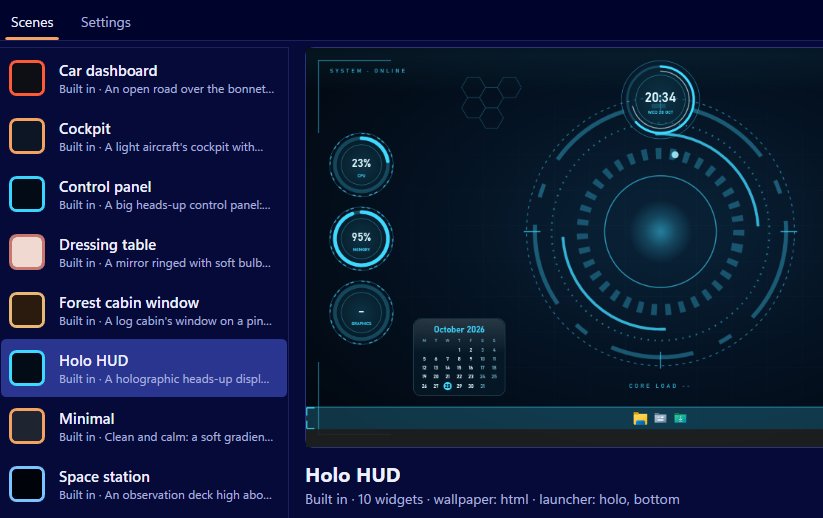
Once you've picked a scene, you don't need Scene's window open all day. Scene by Zaweba can keep running in the notification area, with a tray icon that switches scenes, starts Arrange and sends feedback. Close the window and your desktop stays as it is.
That's how most people end up using it: set things up in the window, then leave it in the tray.
Keeping Scene running
In Settings (Ctrl+, or the View menu), tick Keep Scene running in the notification area. With that on, closing the main window leaves Scene running with its icon in the tray, and your wallpaper, widgets and launcher bar stay put. With it off, closing the window closes Scene, and the scene goes with it.
If you want Scene to start straight into the tray, run it with --tray. It starts hidden, with just the icon.
Only one copy of Scene runs at a time. Starting it again doesn't give you two sets of wallpapers fighting each other.
What the tray menu does
The tray icon has a scene menu, so you can switch between scenes without opening the window. It also has Arrange, which puts a frame on every widget on the real desktop so you can drag, resize or remove them, and Send feedback.
Arrange from the tray is particularly handy. You notice a widget would be better elsewhere, click the tray icon, choose Arrange, move it and press Done on the floating bar. No need to open the editor.
Start-up with Windows
There isn't a start-with-Windows option in Scene yet. What Scene does remember is whether a scene was on: when Scene starts, it switches that scene back on. So the routine is simple. Start Scene, and your desktop comes back as you left it.
If you start Scene yourself each morning, the --tray option lets a shortcut start it without the window appearing, which keeps things tidy.
A sensible setup
Tick Keep Scene running in the notification area. Choose your scene and arrange it. Close the window. From then on, the tray icon is where you go to switch scenes for the time of day or the mood, and to tweak a widget's position.
Open the main window when you want the editor, Settings, or to import or export a .zscene. Switching on or off is on the Scene menu or Ctrl+Space in the window.
What closing really does
It's worth being clear about the difference between closing the window and switching a scene off. Closing the window, with the tray setting on, leaves the scene running. Switching the scene off removes all of Scene's windows and leaves Windows exactly as it was. If you want your normal desktop back, switch off; if you just want the window out of the way, close it.
And if Scene ever stopped unexpectedly, the next start repairs anything left over, such as restoring the taskbar if you had auto-hide on. Scene by Zaweba keeps a small record of what it changed for exactly that reason.

