
Can you use a video as your desktop wallpaper on Windows?
Yes. In Scene by Zaweba you set a scene's wallpaper to a video file in the editor, switch the scene on and it plays behind your desktop icons.
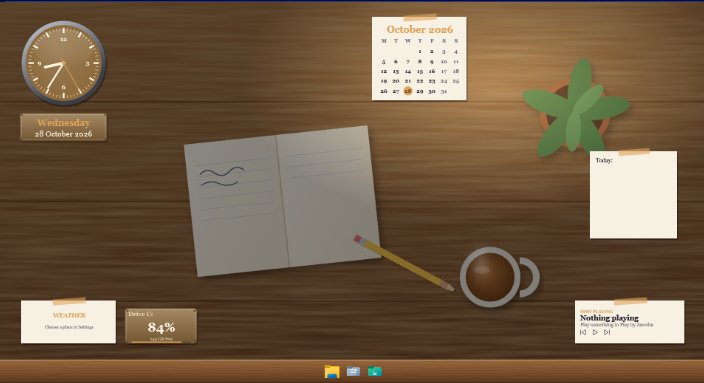
Windows can play a video as your wallpaper once you add Scene by Zaweba, which lets a scene's wallpaper be a video file. Open the editor, choose a video as the wallpaper, save, and switch the scene on. The video then plays behind your desktop icons, which stay clickable, and Scene pauses it while a full-screen app or game is running.
Windows itself only offers still pictures and slideshows for the background. Scene adds its own window just below the icons and draws the wallpaper there, so you get moving pictures without anything in Windows being patched.
What you need
You need Scene installed, which is free software under the EULA, runs offline and needs no account. You also need the video you want, saved somewhere on your PC. Scene uses the Microsoft Edge WebView2 runtime to show wallpapers, and that's built into Windows 11.
It's best to start from a scene of your own rather than a built-in one. The nine scenes that come with Scene are read-only, so make a new scene with File > New scene, or pick a built-in one you like and use Scene > Duplicate to get your own copy to change.
Setting the video
Open your scene in the editor. The wallpaper setting lets a scene use an image, a video, a web page folder, an animation export or a plain colour. Choose video and pick your file. Scene writes a small page for it so it plays filling the wallpaper.
While you're there you can choose colours, a font for the widgets and a launcher texture that suits the footage. The editor shows the scene as it will look on your PC, and you can also see it at 1080p, at 1440p at 150 per cent or at 1366 by 768, which helps if you'll share the scene with someone whose screen is different.
Press Preview on desktop to see it live, and Stop preview to end it. When you're happy, Save. Then select the scene in the Scenes tab and choose Switch on or off, or press Ctrl+Space.
Two monitors and the time of day
Each monitor gets its own wallpaper window, so the video plays on each of your screens, and widgets can be placed on whichever monitor you like. Scene works out positions per monitor in physical pixels, so different scaling on each screen is fine.
Scene also tells a wallpaper whether it's dawn, day, dusk or night. A plain video won't do anything with that, but it's worth knowing if you later move on to a web page wallpaper that changes through the day.
Choosing footage that behaves
Video is one of the busier things a wallpaper can show. Scene pauses the wallpaper while a full-screen app or game runs, and Settings has a second box to pause it when the PC is on battery. Both are worth leaving on. Each scene also has a frame-rate cap.
A calm, slow clip often looks better behind icons than something fast and bright, and it's easier to read your widgets over it. Rain on a window, clouds or a slow pan across a view tend to work well.
Sharing it
Once it looks right, File > Export (Ctrl+E) writes a .zscene file, which is your scene folder zipped up, video included. Someone else can import it with File > Import (Ctrl+O) or by opening the file with Scene. Imports are limited to 300 MB, so a long, high-resolution video may need trimming before you share it.

