
How to write your own live wallpaper in HTML
Make a folder with an index.html as FORMAT.md describes, then choose it as a web page wallpaper in Scene by Zaweba's editor.
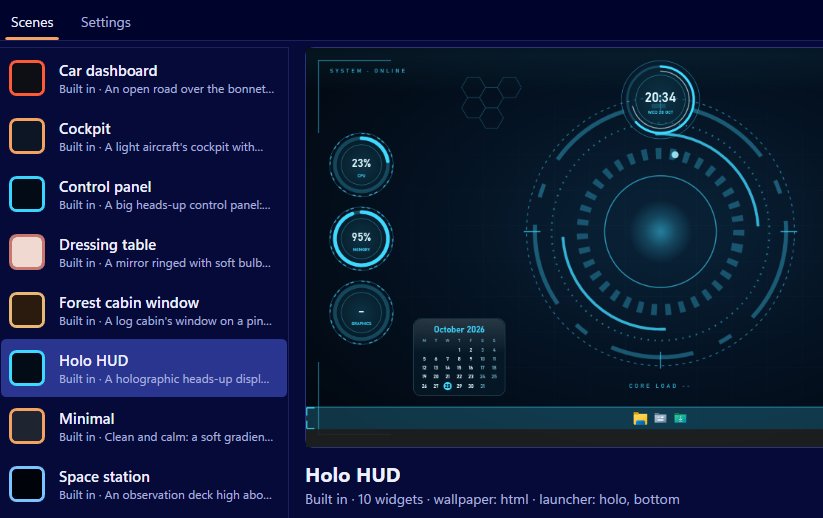
Write your wallpaper as an ordinary web page in a folder with an index.html, following FORMAT.md, then open Scene by Zaweba's editor and choose that folder as a web page wallpaper. Scene shows it behind your desktop icons on each monitor, with your widgets and launcher bar on top. HTML, CSS, SVG and JavaScript all work.
Every one of Scene's nine built-in scenes is drawn this way, in HTML, CSS and SVG, so anything they do, your own page can do too.
Read FORMAT.md first
In Scene, choose Help > Making your own scenes. It opens FORMAT.md, the guide to how scenes are put together. It covers scene.json, wallpapers, widgets, data feeds, wallpaper pages and the window.zscene object they can use, skins and textures, and sharing. It also points you to a template folder, which is the easiest place to start because the files are already laid out correctly.
Building the page
Keep everything the page needs inside its own folder: the index.html, stylesheets, scripts, images and fonts. That isn't just tidiness. Wallpaper pages can't reach the internet, and anything outside the scene's own folder is blocked, so a font from a web address or a script from elsewhere won't load. Copy what you need into the folder.
Scene tells the page the time of day as dawn, day, dusk or night, and FORMAT.md explains how a page reads it through window.zscene. That's how the forest cabin window changes from dawn to night. A scene can also set a fixed time of day in the editor, which is useful while you test each look.
Remember the icons sit on top. Leave calm areas where they usually go, and avoid flashing or high-contrast detail behind text.
Putting it in a scene
Make a scene with File > New scene, or copy one with Scene > Duplicate. Open it in the editor and set the wallpaper to Web page, then choose your folder. Pick colours, a font and a launcher texture that suit the page, add widgets, and press Preview on desktop to see it live. Stop preview ends it. Save when you're done, then switch the scene on from the Scenes tab.
The editor can show the scene as it will look on your PC, at 1080p, at 1440p at 150 per cent or at 1366 by 768, so you can check that the page works on screens other than yours.
Being kind to the processor
A wallpaper runs all day, so treat it kindly. Each scene has a frame-rate cap that covers both requestAnimationFrame and CSS animations, and you'll rarely need more than a modest rate for something behind your icons. Scene pauses the wallpaper while a full-screen app or game runs and, if you choose in Settings, on battery. The Minimal scene shows how far you can go with almost no animation at all.
Test on two monitors if you can. Each monitor gets its own wallpaper window, and Scene works in physical pixels per monitor, so check that your layout copes with different scaling.
Sharing what you made
File > Export (Ctrl+E) writes a .zscene file, the scene folder zipped. Someone else imports it and gets your page, widgets and launcher look. Import accepts no programs and limits a scene to 300 MB and 2000 files, which is plenty for a web page wallpaper.

