
Building screensavers from the command line
Screensavers by Zaweba can build a .scr with no window using --build-html. The options, the exit codes and how to use them in a script or a class.
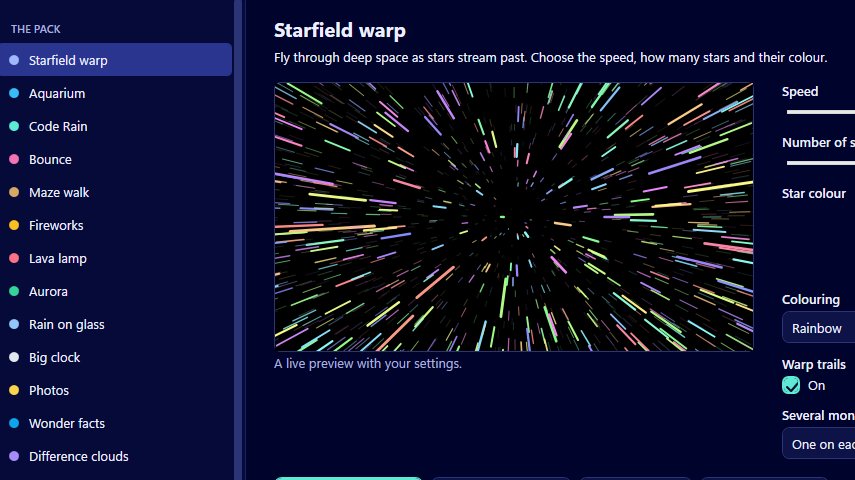
Most people will make a screensaver from a web page folder through the manager. But if you're making several, or you want another tool to make them for you, a window gets in the way. Screensavers by Zaweba has a builder you can run from the command line, which builds a .scr with no window at all.
It's the same builder the manager uses, just driven by text instead of buttons. That makes it handy in scripts, in a classroom where many pages need turning into screensavers, or from another program.
The command
The command has this shape:
ZawebaScreensavers.exe --build-html folder --name name [--out file.scr] [--install]
The folder is the web page folder, which must contain an index.html. The name is what the screensaver is called. The two parts in square brackets are optional. With --out you choose where the .scr file is written and what it's called. With --install the builder also installs the screensaver after building it, the same way the manager does, into your own profile with no administrator rights.
Leave out --out and --install and the builder simply builds the screensaver. Add --install when you want it put in place as well.
Exit codes
When the builder finishes, it reports how things went with an exit code, which a script can check. 0 means success, and the path of the built file is written to standard output, so a script can pick it up and use it. 2 means the arguments were wrong, for example a missing name. 3 means the folder or its index.html is missing. 4 means the build itself failed. 5 means the screensaver was built but the install failed.
That last one is worth handling separately in a script: the .scr exists, so you could still copy it elsewhere, but it isn't in place as a screensaver.
What the page gets
A screensaver made this way behaves exactly like one made in the manager. The page runs full screen with no network access, and it closes on input. It can read window.ZAWEBA_SAVER to get its settings, and an optional saver.json file in the folder adds a description and settings. So if your page needs settings, add a saver.json before you build.
Ways to use it
A teacher with a folder of pupils' web projects can loop through them and build one screensaver each, using each pupil's name. A designer can rebuild a looping logo screensaver as part of the same script that exports the page. Another program can turn its own output into a screensaver; Kinetion by Zaweba, for instance, has File then Export as Screensaver, which builds and installs a .scr through Screensavers.
Avoiding trouble
Exit code 3 is the one people meet most: check that the folder path is right and that the file is called index.html, not something similar. Quote paths that contain spaces. Test the page in the manager with Preview full screen before you automate anything, because a page that relies on the internet won't work once the screensaver blocks the network. And check the exit code in your script rather than assuming success, so a failed build or install doesn't go unnoticed.

