
Code Rain in Screensavers: characters, colour and speed
Make falling code your own in Screensavers by Zaweba: pick katakana, binary, hex, Greek or maths symbols, then set the colour, speed and character size.
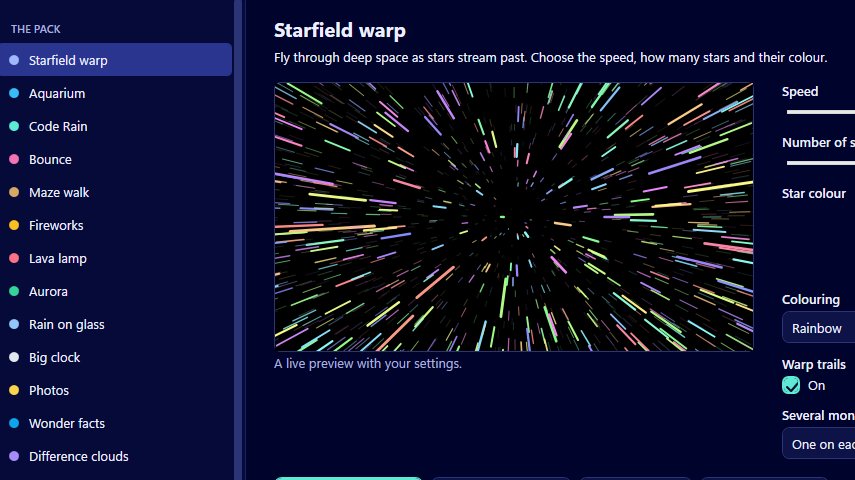
Falling columns of glowing characters have been a favourite idle screen for programmers and film fans for a long time. Code Rain is the take on it in Screensavers by Zaweba: columns of characters fall down the screen and fade as they go. It is drawn by the app's own code, and its settings let you choose what those characters actually are.
That choice is what makes it more than a novelty. A column of binary digits feels very different from a column of Greek letters, and the right one depends on who will be looking at the screen.
Choosing the characters
The characters setting has seven options. Letters and digits gives a general mix that reads as computer code. Digits alone looks like a stream of numbers from an old terminal. Binary uses only noughts and ones, which is the plainest and most graphic of the set. Hexadecimal uses the digits and the letters A to F, which programmers will recognise from memory addresses and colour codes.
Katakana uses the Japanese script that gives this kind of effect its familiar look on screen. Maths symbols fills the columns with mathematical signs, and Greek letters uses the Greek alphabet. Those last two make Code Rain a nice fit for a maths or physics classroom, or a study at home, where a stream of formulas suits the room better than a stream of code.
A good way to choose is to set everything else first and then cycle through the seven in the manager's live preview. You'll usually know within a few seconds which one belongs on your screen.
Colour, speed and size
Colour sets the colour of the characters. Green is the obvious choice and looks good on almost any monitor, but it is worth trying others. A pale blue looks cool and technical, amber recalls old terminals, and a soft white is the calmest of all.
Speed runs from 1 to 10 and controls how fast the columns fall. Character size, also 1 to 10, controls how big the characters are. These two work together. Small characters falling quickly look dense and busy, like data pouring past. Large characters falling slowly are easier to read and much calmer, which matters if you're using katakana or Greek letters because you want people to see them.
On a very large monitor, a slightly larger character size stops the screen looking like static from across the room. On a small laptop screen, smaller characters keep enough columns on screen for the effect to work.
Using it well
Test it in Preview full screen before you commit. The small preview in the manager is good for choosing characters and colour, but speed is much easier to judge at full size. The full screen preview closes the moment you move the mouse or press a key.
When it's right, press Use this screensaver. The app builds it into your profile, with no administrator rights needed, and opens Windows' Screen Saver Settings for the wait time and the password option. Because settings are read whenever the screensaver starts, you can change the colour or the characters later in the manager and the next run uses them without any rebuilding.
With several monitors, Code Rain can run one copy on each screen, one stretched across them all, or on the main monitor only with the others black. Stretched across a row of monitors it looks like one wide wall of falling text.
Things to watch for
The commonest mistake is a speed and size combination that turns the screen into a blur. If you can't pick out a single character from where you usually sit, slow it down or make the characters bigger. Another is a very bright colour on an OLED monitor that will show it for hours; a softer colour and a moving screensaver are kinder to it.
If you like Code Rain but also want variety, tick it in Install several along with Starfield warp or Difference clouds, and Windows will get one of them at random each time the screen goes idle.

