
Galaxies and wormholes in the Deep space screensaver
Deep space in Screensavers by Zaweba shows spiral, barred and elliptical galaxies drifting past, with the odd wormhole. Here's how to set it up.
Galaxies turning slowly in the dark make a fine thing to come back to after a break. Deep space in Screensavers by Zaweba fills a starry sky with spiral, barred and elliptical galaxies that turn and drift across the screen. Now and then a wormhole opens with a lensing swirl, bending the light around it before it closes again.
It's part of the night pack, which means a mostly dark screen with a few bright things moving through it. Three settings shape the scene.
The galaxies you'll see
Three kinds of galaxy appear. Spiral galaxies have arms curving out from a bright centre. Barred galaxies have a straight bar of stars across the middle, with arms from its ends. Elliptical galaxies are smooth, rounded glows without arms. Seeing all three drift past gives the scene variety without making it busy, and astronomy fans will recognise the shapes.
The wormhole is the bit of drama. When one opens, the stars and galaxies behind it appear to bend into a swirl, the way gravity bends light. It is short and occasional, which is exactly why it catches the eye.
Three things to adjust
Number of galaxies decides how many are on screen. A few makes the sky feel vast and empty, which suits a dark room. More gives you something to look at wherever your eye lands.
Wormholes now and then can be switched on or off. Leave it on for the occasional swirl. Switch it off if you want a completely calm scene with no sudden changes, for example on a screen in a bedroom.
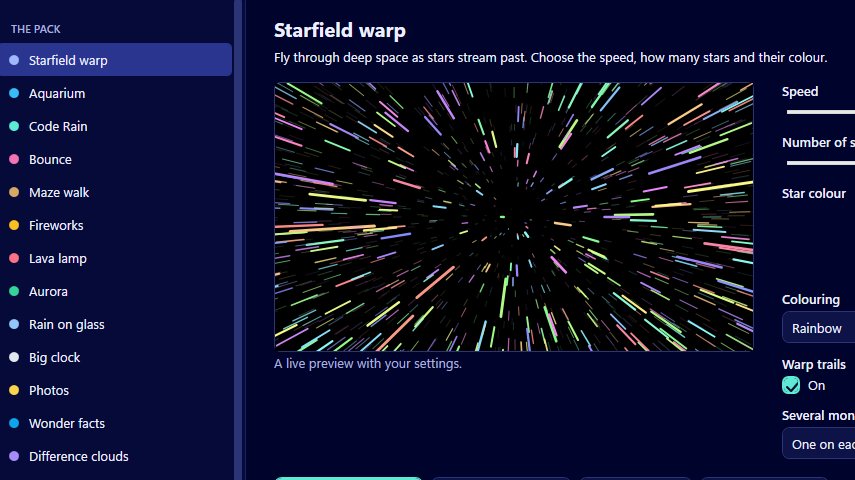
Speed sets how fast the galaxies turn and drift. Slow is gentle and suits long idle spells. Faster gives a sense of travelling through space, a little like Starfield warp but far calmer.
Getting it ready
In the manager, the live preview follows each setting as you change it. Start with the number of galaxies, decide whether you want wormholes, then set the speed. Since wormholes only appear now and then, you may need to watch the preview for a while to see one.
Preview full screen shows the scene at its real size. Dark scenes like this one look different on a big screen, where the faint galaxies are easier to see. Any key, click or mouse movement closes the preview.
Then press Use this screensaver. It is built into your profile with no administrator rights needed, and Windows' Screen Saver Settings opens so you can choose the wait time and whether a password is asked for. Settings are read when the screensaver starts, so later changes need no rebuild.
On several monitors and on laptops
With more than one monitor, you can have a separate sky on each, one sky stretched across them all, or the main monitor only with the others black. A stretched sky lets galaxies drift from one screen onto the next, which looks especially good on two matching monitors.
On a laptop, the shared frame cap in Install and options (30 or 60 frames per second) keeps the work down, and the battery saver blanks the screen when the charge falls below the level you set, 25 per cent unless you change it. Slow galaxies don't need 60 frames per second, so 30 is a sensible choice here.
Good company in the night pack
Deep space goes well with Space traffic, its busier neighbour in the night pack, and with Aurora and Difference clouds. Tick a few in Install several and the screensaver picks one at random each time. That's a good way to keep a dark, starry theme without seeing the same scene every day.
If you change too much and want to start over, Reset to defaults puts the number of galaxies, the wormholes and the speed back as they were.

