
Checking a screensaver with Preview full screen
Preview full screen in Screensavers by Zaweba shows a screensaver at its real size before you use it. Why it matters, and what to look for while it runs.
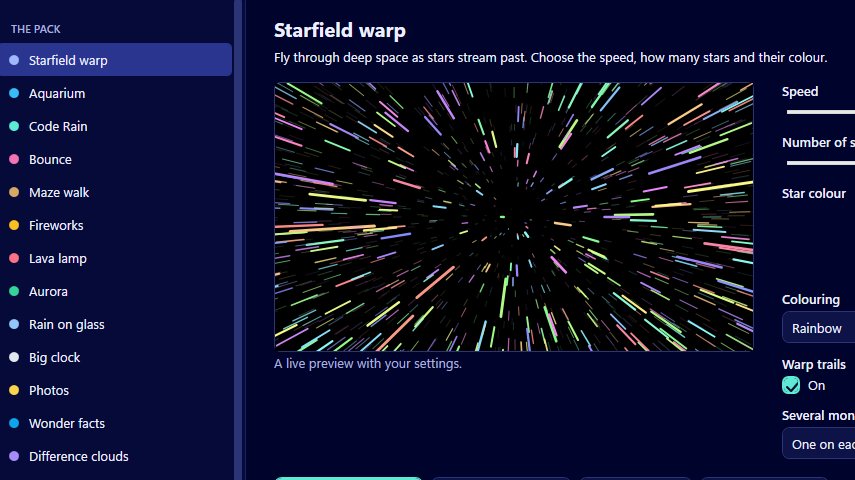
Small previews are good for choosing, but they can fool you. Preview full screen in Screensavers by Zaweba runs the chosen screensaver across the whole screen, so you can see it as it will really look before you set it as your screensaver.
It sits in the manager next to the live preview and the Use this screensaver button. It takes a few seconds to use, and it is the step that most often saves you from a screensaver that looked lovely in a little window and feels wrong on your monitor.
Why the small preview isn't enough
The manager shows a live preview of each screensaver that follows its settings as you change them. That's ideal for picking colours, choosing characters for Code Rain or deciding how many fish go in Aquarium. But a few things only show up properly at full size.
Speed is the big one. Movement that looks gentle in a small window covers far more of your field of view across a whole monitor, so it feels faster. A starfield or a motorway drive can go from calm to dizzying. Brightness is another: a dark scene like Aurora or Deep space looks very different when it fills the screen in a dim room. And fine detail, such as the veins in Difference clouds or small cards in Poker deal, needs the full resolution to judge.
How it works
Choose a screensaver in the manager, set it up as you like, and press Preview full screen. The screensaver starts across the screen with your current settings. To end it, move the mouse more than about 10 pixels, press any key or click. That's the same way a real screensaver closes, so the preview behaves exactly as the real thing will.
Because it closes so easily, you can go back and forth quickly. Preview, close, nudge a setting, preview again. A few rounds of that usually settles the right speed and brightness.
What to look for
Sit where you normally sit, not leaning in close. A screensaver is mostly seen from your chair or across the room, so judge it from there. Ask yourself whether it's restful or tiring after half a minute, not just in the first few seconds. Check whether anything flashes or moves too quickly for the room it's in. And if it's for a dark room, try the preview with the lights as they'll usually be.
For a screensaver you've made yourself from a web page folder, the full screen preview is also the place to check that your page fills the screen properly and behaves as you expect.
After the preview
When you're happy, press Use this screensaver. It builds the screensaver into your profile, without administrator rights, and opens Windows' Screen Saver Settings for the wait time and password option. If you change your mind later, settings are read when the screensaver starts, so another round of previewing and tweaking needs no rebuild.
If you've tried so many changes that you've lost track, Reset to defaults puts the settings back and you can preview the original look again.
A habit worth keeping
The simplest rule is never to set a screensaver without previewing it full screen first. It takes seconds, and it's much easier than discovering an hour later that the screen has been flickering away too fast beside you. It's especially worth doing for the busier night pack scenes, such as Space traffic and the two races, where the settings make the biggest difference.

