
How to reset a screensaver to its default settings
In Screensavers by Zaweba, select the screensaver and press Reset to defaults to put all its settings back. The live preview shows the change at once.
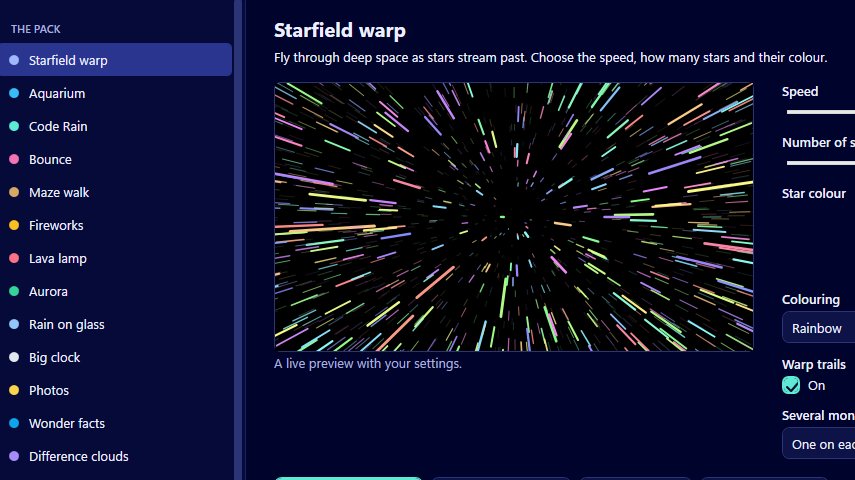
Resetting takes one button. Open Screensavers by Zaweba, select the screensaver in the manager and press Reset to defaults. Every one of that screensaver's settings goes back to its default value, and the live preview beside them changes straight away so you can see the result.
It's the quickest way out of a muddle. If you've spent a while trying colours, speeds and sizes and can't remember how it looked to begin with, this puts it back exactly.
What gets reset
Reset to defaults works on the screensaver you have selected. It puts all of that screensaver's settings back, and only that screensaver's. If you've tuned Aquarium to 30 fish in moonlight and you reset Fireworks, your aquarium stays as you left it.
The shared options in Install and options, such as the frame cap and the battery saver, aren't part of any one screensaver's settings, so they aren't touched by this button. Nor is your choice in Windows' Screen Saver Settings: if a screensaver was the current one before you reset it, it still is.
Nothing to rebuild
You don't need to reinstall a screensaver after resetting it. Each screensaver reads its settings when it starts, so the next time Windows starts it, it runs with the defaults. The same is true of any change: tweak a setting in the manager and the next run uses it.
If you've built several screensavers into one random pick with Install several, the same applies to each one inside it. Reset Starfield warp, and the next time the random pick lands on Starfield warp, it uses the defaults.
Using it to experiment
Because resetting is instant and costs nothing, it's a good reason to try the settings properly. Push every slider to its extremes, try the stranger colour choices, turn things off that you'd normally leave on. Watch the live preview, and press Preview full screen if you want to see a combination at size. If it doesn't work out, Reset to defaults takes you back to a known starting point.
A sensible habit is to change one setting at a time. Then you know which change made the difference, and you can reset and try another without losing track.
Starting fresh with your own screensavers
Screensavers you've made yourself from a web page folder can have settings too, through an optional saver.json in the folder that adds a description and settings. Your screensavers lists everything that's been built, with Use, Try it and Delete buttons, and the monitor choice for the ones you made. If a home-made screensaver has gone wrong in a way a reset can't fix, deleting it there and building it again from the folder gives you a clean copy.
When the problem is in Windows
If the screensaver itself looks fine in the preview but Windows isn't starting it when you expect, the issue is the wait time or the selection in Windows' own dialog rather than the settings. Choose File, then Windows screensaver settings, in the manager to open it, check which screensaver is chosen and how many minutes Windows waits, and press OK.

