
Reset to defaults: a safe way to experiment with settings
Reset to defaults in Screensavers by Zaweba puts all of a screensaver's settings back. Why it makes experimenting safe, and how it fits the live preview.
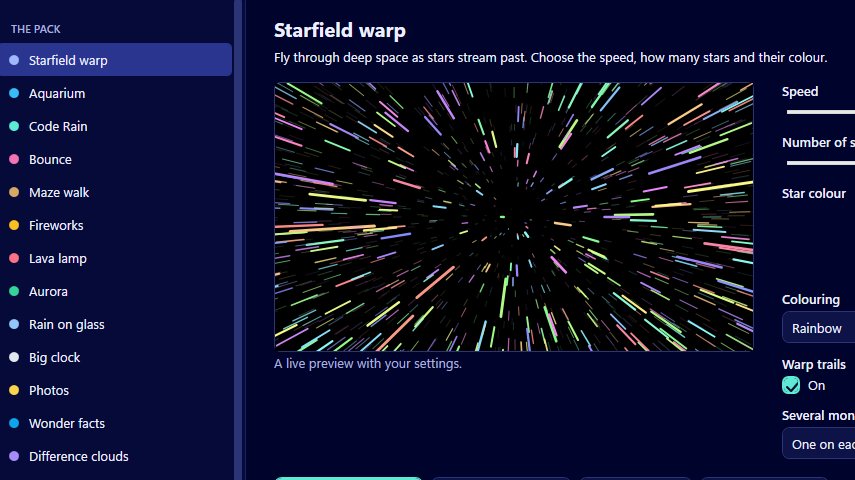
Every screensaver in Screensavers by Zaweba has its own settings, from the number of fish in Aquarium to the crash frequency in Night open wheel race. That's a lot of sliders and choices to play with, and it's easy to drift a long way from where you started. Reset to defaults puts all of a screensaver's settings back to their default values in one go.
It's a small button, but it changes how freely you can experiment. Knowing you can always get back to the original look means you can try anything.
Why it matters with so many settings
The screensavers have a wide range of settings. Starfield warp has speed, number of stars, star colour, colouring and warp trails. Code Rain has seven character sets. Space traffic has how busy, what flies past, planets, meteors and comets, speed and tumble. The race screensavers have blur settings and your own colours. Change a few of those at once and it can be hard to tell which one made things worse.
Reset to defaults gives you a clean starting point. You don't have to remember what each setting was, or write anything down before you start.
How it works with the live preview
The manager lists each screensaver with a live preview that follows its settings as you change them. Reset to defaults works on the screensaver you've chosen, and the preview shows the original look again straight away. That makes a good rhythm for tuning: reset, change one setting, watch, change the next. When you've found something you like, try Preview full screen to check it at real size.
Resetting affects only the screensaver you're working on. The others keep their own settings.
No rebuilding needed
Settings are read each time a screensaver starts. So if you've already set a screensaver with Use this screensaver and then reset its settings in the manager, the next time it runs it uses the defaults. You don't need to build it again or go back to Windows' Screen Saver Settings. The same is true when you change settings the other way, away from the defaults.
Good times to use it
Use it when a screensaver has stopped looking right and you can't tell why. Use it on a shared family PC after someone has had a go at the settings. Use it when you've been trying combinations for a while and want to compare your version against the original. And use it before you write about or show a screensaver to someone else, so they see it as it was designed.
It's also handy before you use Install several, which builds the ticked screensavers into one that picks one at random each time it starts. If one of them has odd settings left over from an experiment, a quick reset keeps the set consistent.
A gentle warning
Reset to defaults really does put all of that screensaver's settings back, including the ones you were happy with. If you like most of your changes and only want to undo one, change that setting back by hand instead.
Used that way, it turns the settings from something to be careful with into something to play with, which is how a screensaver app ought to feel.

