
A starfield screensaver for Windows 11
Starfield warp in Screensavers by Zaweba flies you through stars with optional trails and one colour, warm and cool, or rainbow colouring.
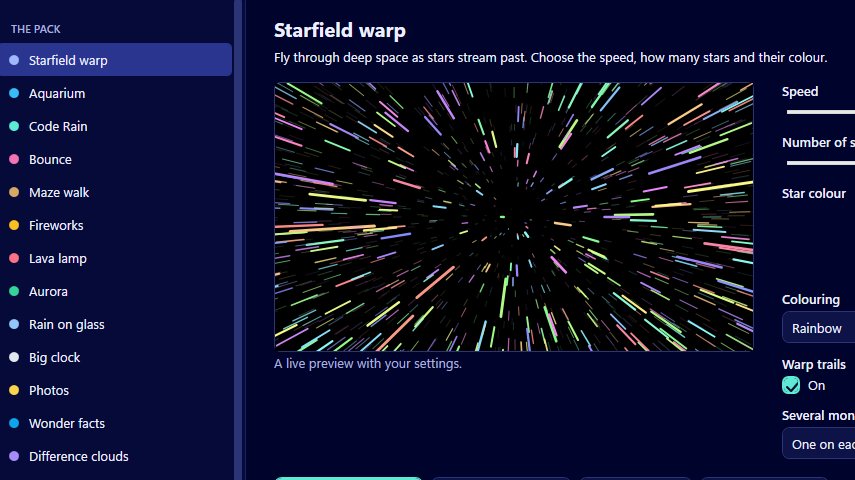
Windows 11 can have a starfield again. Starfield warp, in Screensavers by Zaweba, flies you through deep space as stars stream past, with warp trails you can turn on or off and a choice of one colour, warm and cool, or rainbow colouring. It installs into your own profile without administrator rights and runs offline.
A starfield was one of the first screensavers many people ever saw, and it's still a good one: lots of movement, mostly black, and nothing that demands attention. This version is drawn on a canvas by Zaweba's own code, so it isn't a copy of an old one but a fresh take with more control.
What you can change
There are five settings. Speed and number of stars each run from 1 to 10, so you can go from a gentle drift through a thin scattering of stars to a dense rush. Star colour sets the base colour. Colouring decides how that colour is used: one colour keeps everything uniform, warm and cool mixes warmer and cooler stars for a more natural sky, and rainbow is exactly what it sounds like. Warp trails stretch each star into a streak as it passes, which is the classic hyperspace look.
A slower speed with trails off feels like looking out of a porthole. Top speed with trails on feels like a jump to light speed. Most people settle somewhere between.
Setting it up on Windows 11
Open Screensavers by Zaweba and select Starfield warp. The live preview beside the settings plays straight away and follows each change. When it looks right, press Preview full screen to see it at full size, then Use this screensaver. That builds the screensaver into your profile and opens Windows' Screen Saver Settings, where you choose it, set how many minutes of idle time before it starts, and decide whether Windows asks for your password when you come back.
You never have to reinstall after a tweak. Settings are read each time the screensaver starts.
It's worth trying the rainbow colouring at least once. It's cheerful and a little silly, and on a child's computer it tends to be the favourite.
Monitors and laptops
With two or three screens, choose whether Starfield warp runs on each monitor, spans all of them as one, or stays on the main monitor while the others go black. Spanning gives a wide view with stars rushing past at the edges, which looks particularly good on a curved or side-by-side setup.
On a laptop, Install and options has a shared frame cap of 30 or 60 frames a second and a battery saver. Below a chosen charge, 25 per cent by default, the screen simply goes black instead of drawing stars, so the screensaver doesn't eat into what's left of the battery.
Pairing it with others
If you like space, the night pack has Deep space, with slowly turning galaxies, and Space traffic, with rockets, satellites and the odd UFO. Tick Starfield warp alongside them and use Install several to get one screensaver file that picks among them at random. You get variety without having to change anything in Windows.
Every screensaver in the pack is original, drawn in code, and named for what it shows. Starfield warp is simply that: stars, and the feeling of going somewhere.

