
Getting the most from Starfield warp in Screensavers
How to tune Starfield warp in Screensavers by Zaweba: speed, star count, colouring and warp trails, from a calm drift to a full jump to light speed.
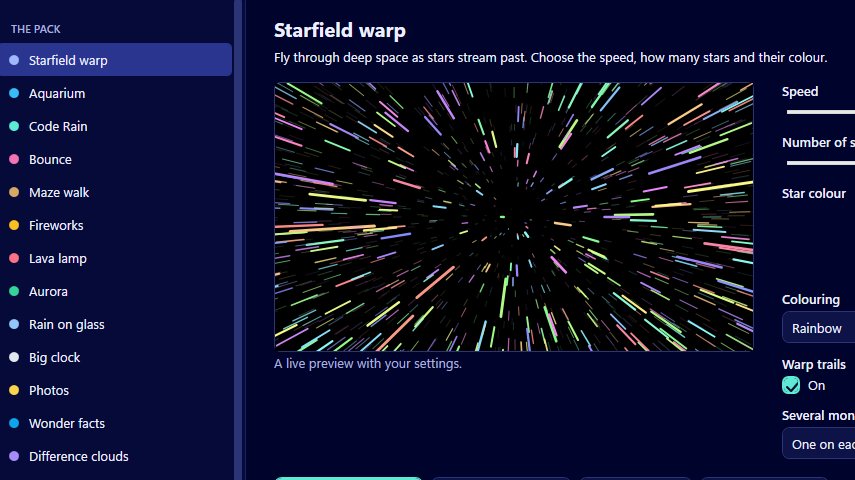
Stars streaming out of the middle of a dark screen are probably the most familiar screensaver picture there is. Starfield warp is the version in Screensavers by Zaweba, and it is drawn on a canvas by the app's own code rather than borrowed from anywhere. You fly through deep space while the stars rush past, and five settings decide whether that feels like a gentle cruise or a jump to light speed.
It sits in the classic pack alongside Aquarium, Code Rain and the rest. Of all of them it is the one people tend to recognise at a glance, which makes it a sensible first choice if you simply want a screensaver that looks like a screensaver.
The five settings and what they change
Speed runs from 1 to 10. At the low end the stars drift towards you slowly enough to follow one with your eye. At the top they streak past and the screen feels busy. Most people settle somewhere in the middle for an office or living room, and push it higher only when they want the screen to look lively from across a room.
Number of stars also runs from 1 to 10. Fewer stars give a sparse, quiet sky with plenty of black. More stars fill the screen and make the motion feel faster even at the same speed, because there is always something passing the edge of your vision.
Star colour sets the base colour. Colouring then decides how that colour is used: one colour keeps every star the same, warm and cool mixes warmer and cooler tones, and rainbow spreads the stars across the spectrum. One colour is the most restrained choice and looks best with white or a pale blue. Rainbow is cheerful and suits a games room or a child's PC.
Warp trails can be switched on or off. With trails on, each star leaves a streak behind it, which is the classic jump effect. With them off you see clean points of light, which reads more like a slow flight through a real star field.
Finding a look you like
The quickest way to tune it is in the manager, where the live preview follows the settings as you change them. Move one slider at a time and watch the preview for a few seconds before you touch the next. Speed and number of stars affect each other, so it helps to set the number first and then adjust the speed until the motion feels right.
A few combinations are worth trying. A low speed with a middling number of stars, one colour and trails off makes a calm, almost meditative scene that works well late in the evening. A high speed, lots of stars, rainbow colouring and trails on gives the full warp effect. Somewhere between the two, with warm and cool colouring and trails on, looks good on a large monitor without being tiring.
When the small preview looks right, use Preview full screen to see it at its real size. Things that look fine in a little window can feel too fast across a whole monitor. The preview closes as soon as you move the mouse or press a key, so you can check and adjust as often as you like.
Making Starfield warp your screensaver
Press Use this screensaver and the app builds it into your profile, with no administrator rights needed, then opens Windows' Screen Saver Settings so you can set the wait time and whether a password is asked for on resume. Settings are read each time the screensaver starts, so if you change the speed or colours later, the change takes effect without building anything again.
If you have more than one monitor, choose how Starfield warp should use them: one copy on each monitor, one stretched across all of them, or the main monitor only with the others black. A stretched starfield across two or three screens is a good sight, because the stars appear to fly out past the edges of the desk.
Mistakes to avoid
The main one is turning everything up at once. A high speed, maximum stars and trails on can be too much on a big screen that you glance at all day. Another is judging it only from the small preview. And if you can't make up your mind between Starfield warp and something calmer, you don't have to: Install several puts the ones you tick into one screensaver that picks one at random each time it starts.
If you get lost among the settings, Reset to defaults puts them all back to where they began, and you can start again from a known look.

