
Managing what you've built in Your screensavers
Your screensavers in Screensavers by Zaweba lists everything you've built, with Use, Try it and Delete, plus the monitor choice for ones you made yourself.
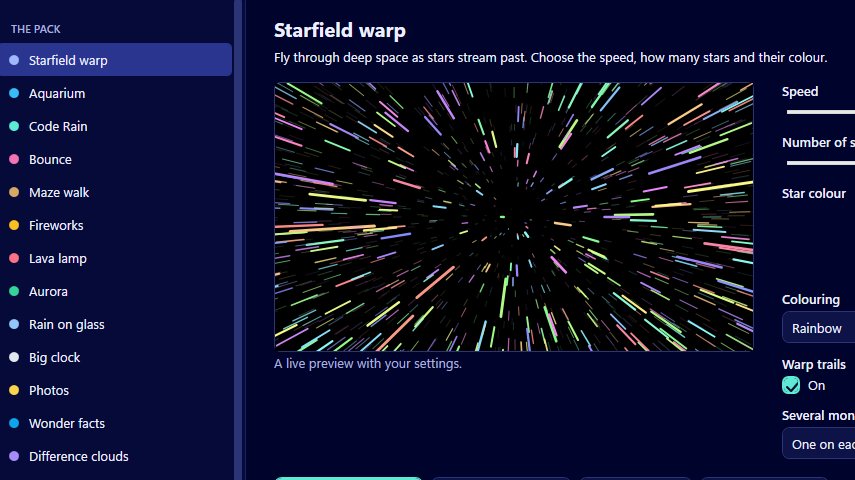
Once you've built a few screensavers, it helps to have one place that shows them all. Your screensavers in Screensavers by Zaweba is that place. It lists everything that has been built, with buttons to use, try or delete each one, and, for screensavers you made yourself, the choice of how they use several monitors.
Think of it as the shelf where your finished screensavers live, as opposed to the pack, which is where you choose and tune them.
What ends up in the list
Anything built goes in the list. That includes screensavers from the pack that you set with Use this screensaver, the combined screensaver made by Install several, screensavers you built from a web page folder with Build and use, and screensavers exported from an animation in Kinetion by Zaweba, which builds and installs its .scr through Screensavers.
All of them are built into your own profile rather than Windows' system folders, which is why no administrator rights are needed.
Use, Try it and Delete
Use is for putting a screensaver you've already built back to work. It's the quickest way to switch between the ones on your shelf, without going back through the pack and building anything again.
Try it lets you see the screensaver again, which is useful when the list holds a few with similar names and you can't remember which is which.
Delete removes a screensaver you no longer want. It's good housekeeping, especially if you've been experimenting with web page folders and have built several versions of the same idea.
The monitor choice for your own screensavers
Every screensaver can run in one of three ways on a PC with more than one monitor: one copy on each monitor, one stretched across all of them, or on the main monitor only with the others black. For screensavers in the pack you choose that in the manager alongside their other settings. For ones you made yourself, the choice lives here in Your screensavers.
Which is best depends on what you made. A logo or a short animation usually looks best as one copy on each monitor. A wide scene or a pattern can look great stretched across them all. If the other screens should stay dark, pick main monitor only.
A tidy workflow
A good habit is to build, try and tidy as you go. When you make a screensaver from a web page folder, build it, then use Try it from the list to check it full screen. If you change the page, build again and delete the old one so the list doesn't fill up with near copies. For a class or a group making several, a plain naming scheme makes the list much easier to read.
For the pack, there's less to tidy, since settings are read when the screensaver starts and changing them never needs a rebuild. The list then mostly serves as a quick way to swap which one Windows uses.
Things to remember
Deleting a screensaver from the list doesn't stop you building it again later from the pack or from the same folder. If you saved a copy with Save .scr file, that file is separate and stays where you put it. And if you want to check which screensaver Windows is set to, or change the wait time, File then Windows screensaver settings opens Windows' own dialog straight from the app.

