
Finding your way around SEO by Zaweba
SEO by Zaweba has a plain-words How it works dialog, pages for the audit, dashboard, history, logs and settings, and a light or dark theme toggle.
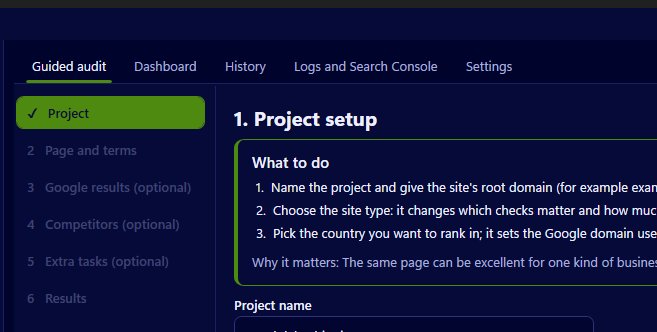
A How it works dialog explains SEO by Zaweba in plain words, and it's the best place to start if you've just opened the app. Around it, the app is arranged as a handful of pages: the guided audit, the dashboard, history, the Logs and Search Console page, and settings. There's also a theme toggle for light or dark, whichever is easier on your eyes.
That's a short list for an SEO tool, on purpose. Most of the work happens in one place, the guided audit, and the other pages are where you go to look at results and fine-tune.
Reading How it works first
SEO tools are full of jargon, and it's easy to feel lost. The How it works dialog sets out what the app does without assuming you know the terms. It's worth five minutes before your first audit, because once you know the shape of the process, each step makes sense.
The steps themselves help too. Each of the six steps in the guided audit has an instruction panel saying what to do, why it matters and where to paste, so the dialog gives the overview and the steps give the detail.
The pages and what they're for
The guided audit is where you start: project setup, page and terms, the Google results page you paste in, competitors, the extra tasks, and results. Projects are listed on the left, and File, then New project, starts another.
The dashboard appears after a scan, with the overall score, category scores against the top-3 average, and tabs for next steps, the to-do list, the comparison, content gaps, the Google results, all checks, site pages and the report.
History keeps every scan, with score trends by category, your position for each term from pasted results pages, competitor movements, and a view comparing any two scans.
Logs and Search Console is where you analyse server access logs and import Search Console exports. Settings holds the crawl limits, crawling manners, optional integrations and where reports are saved.
You don't need to visit every page every time. For a quick check on a page you audited last month, the guided audit and the dashboard are often all you need; History is there when you want to see the longer story.
Light or dark
The theme toggle switches the whole app between light and dark. Dark suits long evening sessions and dim rooms; light is often clearer for reading tables in daylight. The HTML reports carry their own light and dark styling too, so a report looks right whichever way the person reading it has their system set.
A sensible first session
Open How it works and read it through. Start a project with File, then New project, and work through the six steps for one page and one term. Skip the optional steps the first time if you like; the report will tell you what you skipped and what it cost. Look over the dashboard, then open the report. Next time, come back to the extra tasks and fill in more data.
Once you've done one audit, the rest of the app explains itself. Every page answers a question you'll naturally have: what should I do now, what changed, and how do I compare.

