
How to change the crawl speed or user agent
In SEO by Zaweba, Settings, Crawling manners sets the pause between requests, the time-out and the user agent, with a button to restore the default.
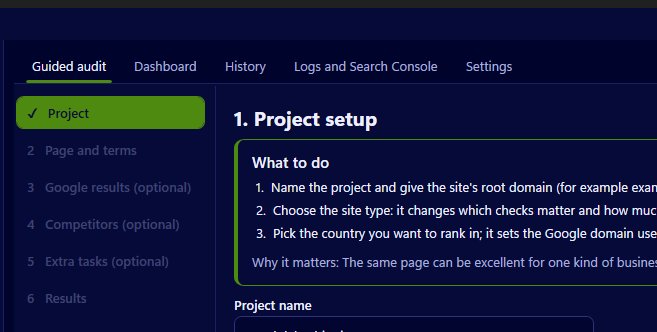
Crawl speed and the user agent both live in one place in SEO by Zaweba: Settings, under Crawling manners. There you set the pause between requests to one site, the time-out for each request and the user agent the app sends, with a button to put the user agent back to its default. The same card holds the optional Googlebot comparison fetch and the JavaScript rendering options.
The pause between requests
The pause is the wait between one request and the next to the same site. By default it is at least one second, which is gentle on any server. Raise it if you are crawling a small or shared host that struggles, or if a site owner has asked crawlers to go slowly. Lower values make a crawl finish sooner but put more load on the site, so use them only on sites you look after and know can take it.
There is one thing you can't override. If a site's robots.txt sets a Crawl-delay, SEO by Zaweba honours it up to 10 seconds, whatever your own setting says. And robots.txt is always obeyed, so changing speed never changes what is allowed.
The time-out
The time-out is how long the app waits for a response before giving up on a request. A longer time-out helps with slow servers that do respond eventually, at the cost of a crawl that takes longer when pages are unreachable. A shorter one keeps crawls moving but may record a slow page as a failure. If you see many time-outs on a site you know is up, raise this before anything else.
The user agent
By default the app identifies itself honestly as SEObyZaweba/1.0.0. That lets site owners see who is visiting, and it is the right choice for most crawls. You can change it when a site behaves differently for different visitors and you want to see a particular version, or when your own firewall blocks unknown agents and you'd rather not change the firewall. The restore button puts the default back.
Changing the user agent is not the same as checking what Google sees. For that, switch on the Googlebot comparison fetch on the same card, and every page you analyse is also fetched as Googlebot and compared with the normal fetch.
Rendering and the wait after load
Render pages with JavaScript, which uses Microsoft Edge WebView2, reads each page as a browser would and compares it with the raw HTML. The wait after load decides how long the renderer gives scripts to finish. A longer wait catches content that loads late but slows every page. Turn rendering off for quick crawls of plain sites, and on when you suspect content only exists after JavaScript.
Related settings
How much is crawled sits on a separate card, Limits: pages on your site, pages per competitor site, how many competitors, links checked per page and images sized per page. Bigger limits and shorter pauses both make crawls heavier, so change one at a time and see how a site copes. SEO by Zaweba saves these settings on your PC, so they stay as you left them for the next audit.

