
How to export SEO data to a spreadsheet
Any table in SEO by Zaweba can go to a spreadsheet: open it and choose File, Export table as CSV (Ctrl+E) to save the checks, comparison or gaps.
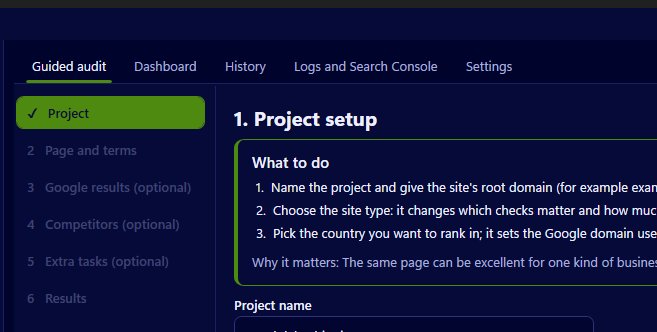
Every table in SEO by Zaweba can be saved as a CSV file that opens in any spreadsheet. Open the table you want, such as the checks, the comparison with competitors or the content gaps, and choose File, Export table as CSV, or press Ctrl+E. The app saves the table you are looking at, and you open the file in Excel, Grid by Zaweba or whatever spreadsheet you use.
Which tables are worth exporting
The All checks tab is the biggest. It holds every check from the scan, each with pass, warn or fail, a severity from 1 to 5, an effort from 1 to 5, its category and a plain reason. In a spreadsheet you can filter it to one category, sort by severity, or add your own columns for who is doing what.
The Comparison tab puts you, each competitor and the top-3 average side by side over about 35 metrics. Exported, it makes a good basis for a chart or a slide when you need to show someone why a competitor ranks higher.
The Content gaps tab lists terms, unanswered People also ask questions, related searches and bolded terms, with how many of the top pages cover each one. Writers find this one useful as a checklist.
The Site pages tab, after a crawl of your own site, holds the site problems. That export is handy when someone else maintains the site and needs a list of pages to fix. The tables on the Logs and Search Console page export the same way, so quick wins, weak click-through and wrong page rankings can go to a spreadsheet too.
How to export
Click the tab so the table is on screen. If you have sorted it, the sort is part of what you see. Choose File, Export table as CSV, pick a folder and a name, and save. The keyboard shortcut is Ctrl+E. Repeat for each table you want; each export is its own file.
Getting the most from it
Name the files with the project and the date, so an export from today doesn't overwrite last month's. If you are tracking progress, keep exports from each audit side by side, though the History page already does much of this inside the app, with a score trend by category and a compare two scans view.
A CSV is plain data, so it suits sorting, filtering and sharing. For a finished document to hand a client or a colleague, the HTML report is better: it is self-contained, printable, has charts and works in light and dark styles. For changes you want made to a page, the AI Fix Brief lists the fixes as markdown you can copy in one click and hand to Claude Code or another assistant.
A sensible routine
Many people run an audit, read the dashboard, export the All checks and Content gaps tables, and share the HTML report. The CSV files become the working list, the report becomes the record, and the next scan in SEO by Zaweba verifies the tasks you marked done. Keeping the data in plain files also means it's yours to keep, with no account and no cloud involved.

