
Can I save a screenshot as a JPG instead of a PNG?
Yes. In Snap by Zaweba, Save As offers PNG, JPG or the editable .ozsnap format, and Ctrl+S saves straight to Pictures as PNG or JPG.
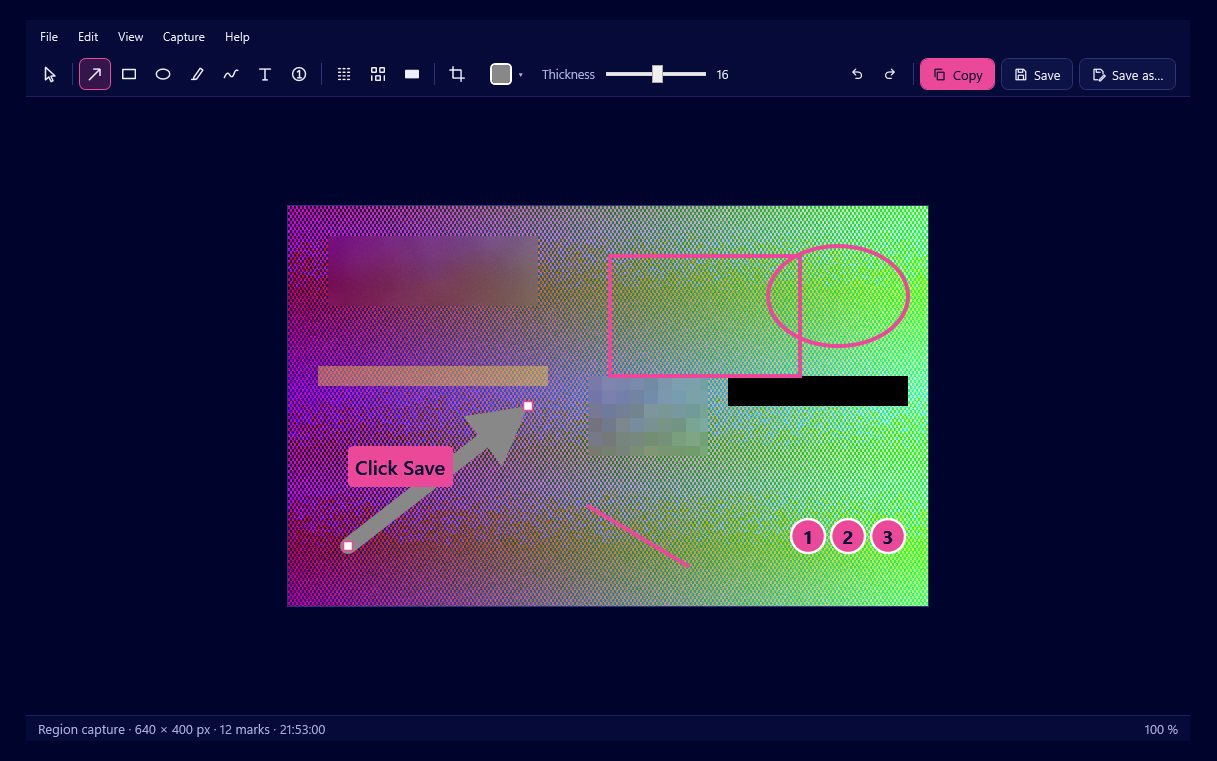
Yes. Snap by Zaweba saves screenshots as PNG or JPG, and Save As offers a third choice, the editable .ozsnap format. Pick JPG in the Save As dialog and the picture is written as a JPG, with every arrow, label and blur flattened into it.
Which format is right depends on what is in the picture and where it is going.
How to save as JPG
Take your capture and finish the marks in the editor. Choose Save As, pick a folder and a name, and set the type to JPG. If you just press Ctrl+S, Snap saves into Pictures\Snap by Zaweba with a dated name such as Snap 2026-09-28 14-32-05, as a PNG or JPG.
Whichever you choose, exports apply your redactions to the actual pixels. A blurred card number or a blacked out password cannot be recovered from the JPG, and exported files carry only the pixels you can see, without metadata or a hidden copy of the original.
When JPG makes sense
JPG compresses pictures by smoothing away fine detail the eye is unlikely to miss in a photo. That makes it a good fit for screenshots that are mostly photographic, such as a web page full of product pictures, a video frame or a desktop wallpaper. Files come out smaller, which helps when an email system or a web form has a size limit.
Some older systems and forms accept only JPG. Saving straight to JPG avoids converting the file in another program.
When PNG is better
Most screenshots are of interfaces: text, buttons, thin lines and flat areas of colour. PNG stores those exactly, so letters stay crisp and edges stay clean. JPG tends to leave faint smudges around sharp text, especially at small sizes, and those smudges are what make a screenshot look blurry when someone zooms in.
PNG is also what Snap copies to the clipboard with Ctrl+C, alongside a bitmap, which is why pasted screenshots look sharp in chats and documents.
A reasonable rule: PNG for anything with text or interface, JPG for anything that is mostly photograph.
The .ozsnap option
The third format is Snap's own. An .ozsnap is a ZIP that holds the original capture, every mark, the crop and a small preview. Open it again and you can move an arrow, reword a label, change a blur or widen the crop. Your last 50 captures are kept in this form automatically in the history.
The .ozsnap is a working file, not something to send. It contains the original, unblurred capture, so a recipient who opened it in Snap could remove your blur. Save a PNG or JPG for sharing and keep the .ozsnap for yourself.
Other routes
If you want to change the picture itself, not just add marks, and Paint by Zaweba is installed, Snap has a button that saves a flattened PNG and opens it in Paint for detailed editing. From Paint you can save in its own formats.
For most people, though, the choice comes down to two clicks in Save As: PNG for crisp interface shots, JPG for photo-heavy ones, and .ozsnap for anything you might want to come back to.

