
Can I start a screenshot from the command line?
Yes. Run ZawebaSnap.exe with capture region, full, window or repeat, and Snap by Zaweba starts that capture, even if it is already running.
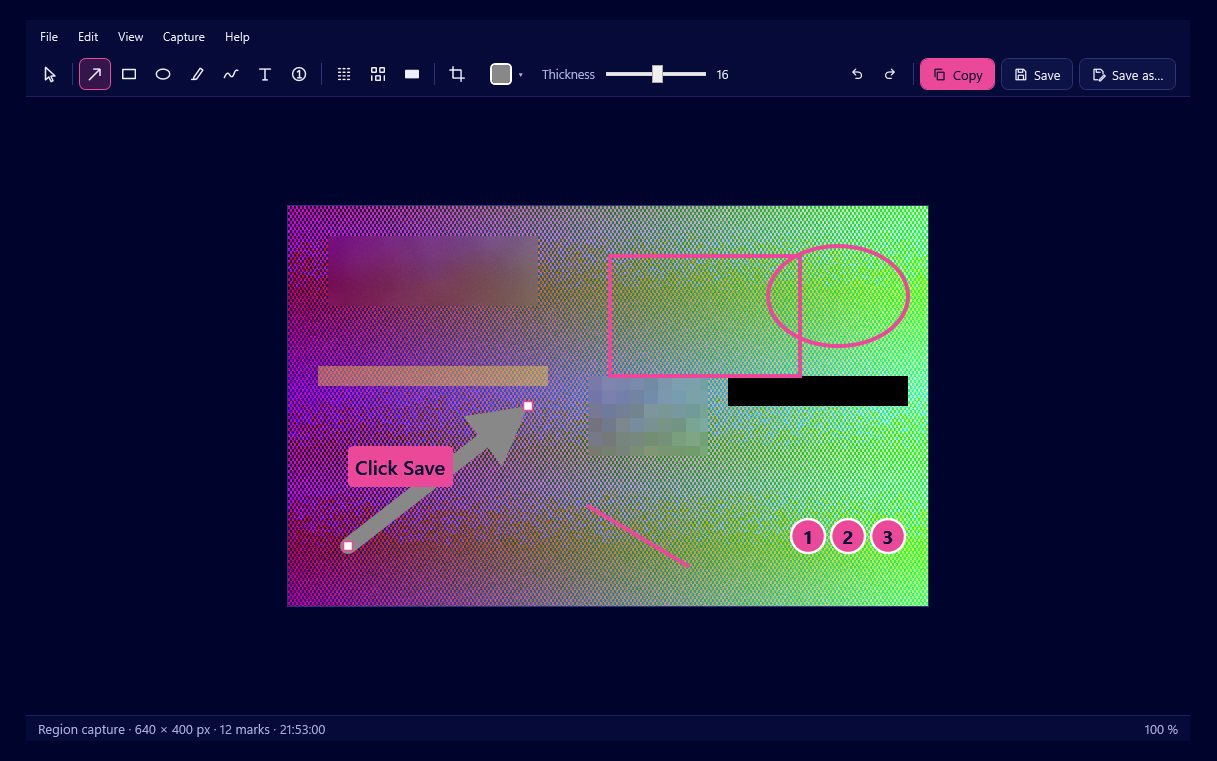
A screenshot can be started from the command line with Snap by Zaweba, using ZawebaSnap.exe and an option that says which capture to take: region, full, window or repeat. If Snap is already running in the tray, the new copy passes the request to it and exits, so the capture happens in the copy you already have.
That makes it easy to start a screenshot from a desktop shortcut, a script, a launcher or a programmable key.
What the options do
The capture options match Snap's four hotkeys. Region opens the frozen overlay so you can drag a box or click a window. Full captures the whole screen, which means every monitor or only the one under the mouse depending on your setting. Window takes the active window's visible frame. Repeat captures the last region you drew.
There are a few other options as well. Tray starts Snap quietly in the notification area, show brings its window forward, and exit closes the running copy. You can also give ZawebaSnap.exe a file to open, such as an .ozsnap you saved earlier, and it opens in the editor with every mark still editable.
One Snap per user
Only one copy of Snap runs for each user. When a second copy starts with options, it hands its command line to the first and exits. That is what makes command line captures reliable: you never end up with two trays, two sets of hotkeys or two histories.
Practical uses
A desktop or Start menu shortcut with the region option gives you a clickable capture button, useful on a touch screen or for someone who forgets the hotkeys.
A programmable keypad or mouse button can run the same command, so a capture is one press on a key you choose.
A script that sets up a test, opens a page or changes a setting can finish by calling the repeat option to capture the same region each time, which gives you frames that line up exactly for before and after comparisons.
Any program that can run a command can start a capture.
Setting up a shortcut
Right-click the desktop, choose to create a new shortcut, and point it at ZawebaSnap.exe in the folder where Snap is installed, followed by the option you want, such as the capture region option. Give the shortcut a clear name, and set a key combination in its properties if you like. When you double-click it, Snap starts the capture in the running copy, or starts Snap first if it is not running.
What happens next
The capture opens in the editor just as if you had pressed the hotkey. Add arrows, text, numbered markers, highlights or blur, then press Ctrl+C to copy or Ctrl+S to save into Pictures\Snap by Zaweba. Your last 50 captures go into the history either way.
On Mac and Linux
The same capture command matters most on Linux with Wayland, where Snap uses a desktop shortcut that runs the capture command instead of grabbing global keys. Add one shortcut for each kind of capture you use, and the routine feels the same as pressing Print Screen on Windows.

