
Starting a capture from the command line with Snap
ZawebaSnap.exe takes a file to open and options such as capture region, full, window or repeat, so shortcuts and other programs can start a Snap capture.
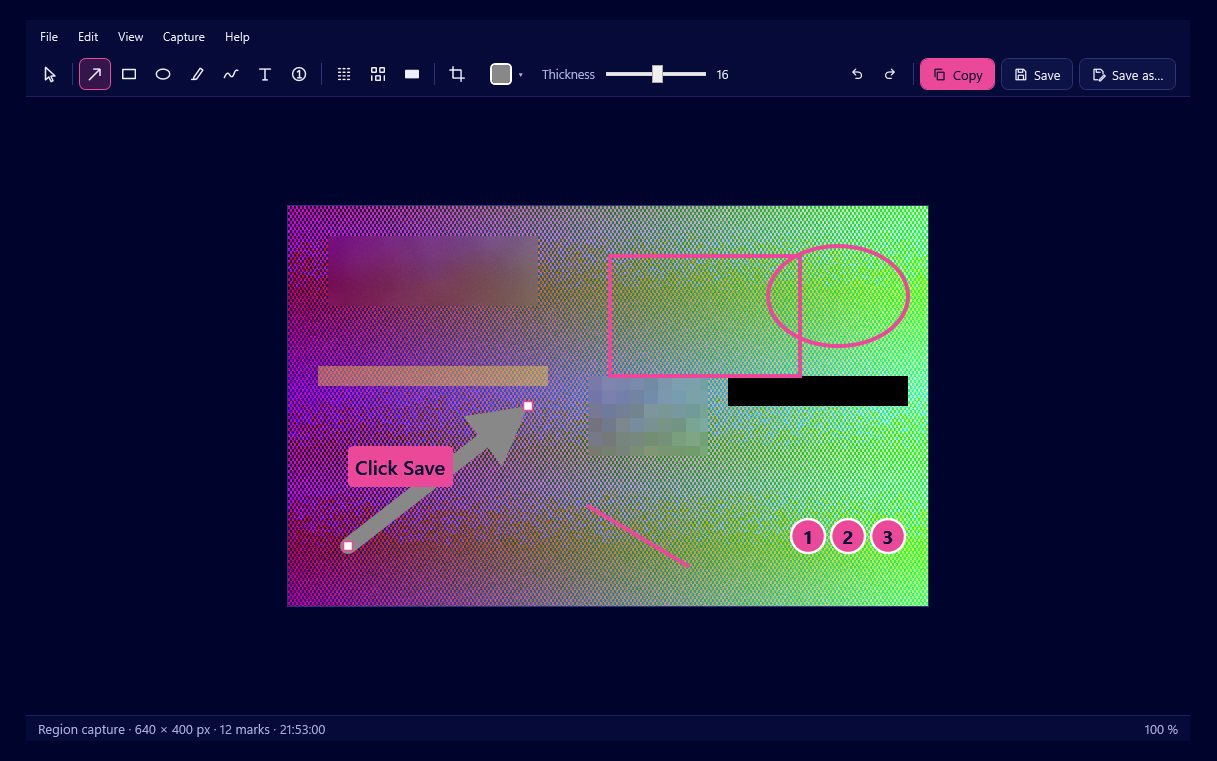
Most people use Snap by Zaweba through Print Screen and the tray icon, and never need anything else. Underneath, though, the program also understands a small set of command-line options. ZawebaSnap.exe can be given a file to open, or told to capture a region, the full screen, a window or the last region again, and to go to the tray, show itself or exit. That lets shortcuts, launchers and other programs start a capture without anyone pressing a key.
The options, one by one
A file to open does what you would expect: it opens a screenshot in Snap's editor, such as a saved .ozsnap with every mark still editable.
The capture options match the hotkeys. Capture region starts the overlay so you can drag a box or click a window. Full captures the whole screen, window captures the active window, and repeat takes the last region again, which is handy for before and after shots of the same spot.
Tray, show and exit control the program itself: start quietly in the notification area, bring the window forward, or close Snap.
Why a second copy hands over
Snap only ever runs one copy per user. When a second copy is started with options, it passes them to the copy that is already running and then exits. So running ZawebaSnap.exe with a capture option while Snap is in the tray does not start a second Snap; it tells the one in the tray to take the capture.
That is what makes the command line useful. A shortcut or script can fire off a capture at any time, and it behaves exactly like pressing the hotkey, with the same settings, the same editor and the same history of your last 50 captures.
Where it comes in handy
A desktop or taskbar shortcut is the simplest use. If you would rather click than press Print Screen, a shortcut to ZawebaSnap.exe with the region capture option does it. A second shortcut for repeat is useful when you are taking a series of shots of the same area.
Keyboard launchers and macro tools can call the same command, so a capture can be part of a longer routine, such as opening a program and then capturing its window.
It also helps when Print Screen is taken. Windows 11 can give the Print Screen key to Snipping Tool, and while Snap warns you about that and offers a button to change it, some people prefer to leave Windows as it is and start Snap another way. A command line is that other way. On Linux under Wayland, the Mac and Linux version uses a desktop shortcut running the capture command for exactly this reason.
Starting Snap with Windows
There is a Start with Windows setting that starts Snap quietly in the tray, so you rarely need to start it by hand. If you manage startup yourself, the tray option does the same job from a shortcut.
What still needs you
A capture started from the command line still needs you there. Region capture freezes and dims the desktop and waits for you to drag or click; Esc or right-click cancels. Full screen and window capture are immediate, and the editor then opens with the result.
Full screen follows Snap's setting for all monitors or only the monitor under the mouse, and parts of the desktop no monitor shows come out transparent rather than black. Window capture takes the active window's visible frame, so make sure the right window is in front when the command runs.
A small door into a quick tool
The command line will not change how most people use Snap. For anyone who likes their tools to fit into shortcuts and routines, it means Snap by Zaweba can be started from almost anywhere, and still behaves like the one copy you already know.

