
A free screenshot tool for Windows that also marks up
Snap by Zaweba is free software for Windows that captures a region, window or whole screen and lets you add arrows, text and blur before you copy.
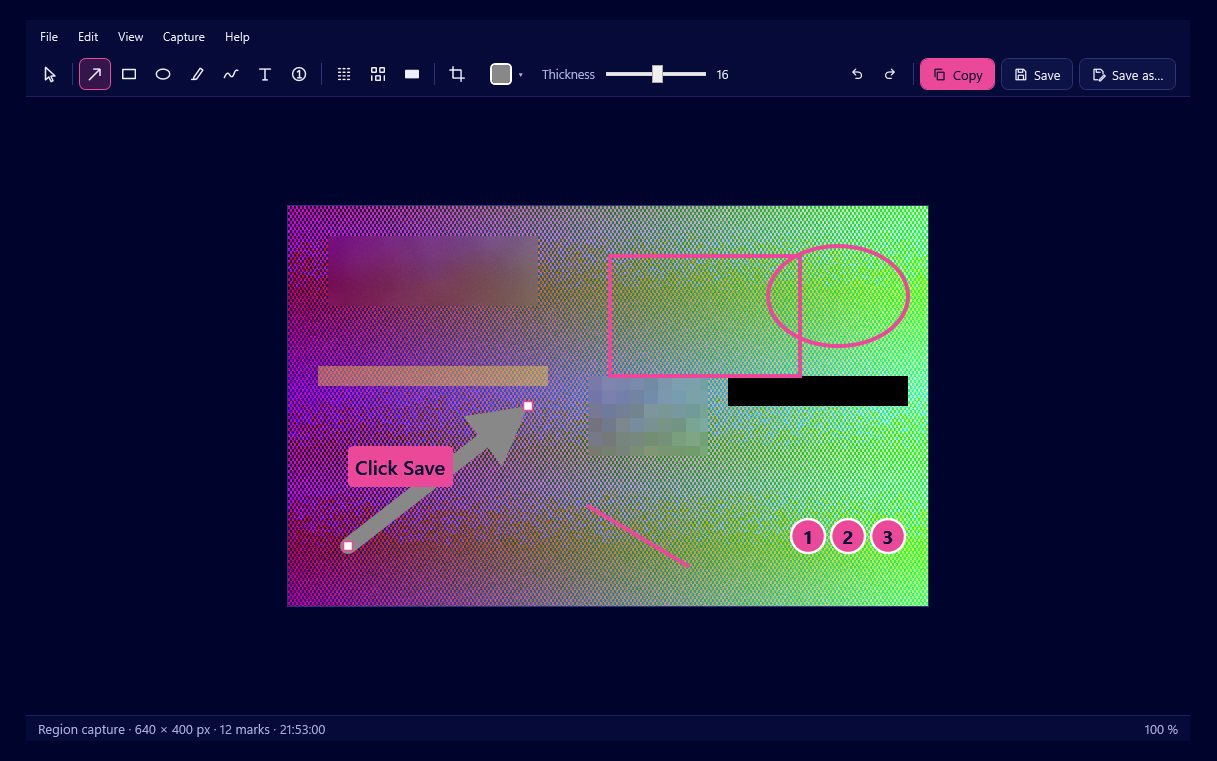
Snap by Zaweba is a free screenshot tool for Windows 10 and 11. It sits in the notification area, takes a region, a single window or the full screen when you press Print Screen, and opens an editor where you can add arrows, boxes, text, numbered steps and blur before you copy or save the result. It is free software under the EULA, with no account, no cloud and no telemetry.
That combination matters more than it first sounds. A plain capture is easy to get from many places, but most screenshots are taken to explain something to another person, and explaining needs a pointer, a label or a hidden password. Snap puts all of that one keypress away.
What you get without paying
The capture side covers the four shots people take most. Print Screen starts a region capture, Ctrl+Print Screen takes the full screen, Alt+Print Screen takes the active window, and Shift+Print Screen repeats the last region you drew. Every one of those hotkeys can be changed in Settings if another program already uses it.
The region overlay freezes and dims the desktop across every monitor. You drag a box and a live label shows its width and height, or you hover over a window until it is highlighted and click to take it. A magnifier shows the pixels under the pointer at eight times with a grid, and the arrow keys nudge the selection one pixel at a time when an edge has to be exact.
Then the editor opens. It has arrows, rectangles and ellipses, a highlighter, a freehand pen, text boxes with a background, numbered markers and three ways to hide things: blur, pixelate and black out. There is a crop tool and 200 steps of undo. When you are done, Ctrl+C copies the picture and Ctrl+S saves it.
Getting started in a few minutes
Install Snap and run it once. The first run opens Settings with a short welcome, and that is the moment to look at the hotkeys. On Windows 11 the Print Screen key may be given to Snipping Tool; Settings tells you plainly when that is happening and offers a button that lets Snap use the key, with a link to give it back. Snap never changes that Windows setting on its own.
Tick Start with Windows if you want Snap waiting quietly in the tray every time you sign in. From then on a left click on the tray icon also starts a region capture, and a right click opens the menu.
Take a first capture of something you would normally describe in words, such as a setting you want a colleague to change. Draw one arrow, add a short text label, and press Ctrl+C. Paste it into the email or chat. That is the whole routine, and after a day or two it becomes a reflex.
Where it stands apart
A few details make Snap more than a quick snipper. Blur and pixelate are applied to the real pixels when you export, so the detail underneath cannot be pulled back out of the PNG or JPG. Exported files carry only the pixels you can see, without a hidden copy of the original or metadata.
Your last 50 captures are kept as editable files, reachable from the tray, so you can reopen yesterday's screenshot and move an arrow rather than starting again. Snap is also per-monitor DPI aware, which means captures stay sharp on a laptop screen and an external monitor with different scaling.
Good habits from the start
Keep marks few and clear. One arrow and one label usually say more than five of each. Use numbered steps when you are showing a sequence of clicks, and use black out rather than blur for anything that could be guessed, such as a short code. Share a PNG or JPG rather than the editable .ozsnap file, because the .ozsnap holds the original, unblurred capture.
If you later need a description of every tool, Snap's other articles go through them one at a time. For now, the short version stands: it is free, it lives in the tray, and it turns a picture of your screen into a clear explanation in a few seconds.

