
How to add text to a screenshot that stays readable
Add text to a screenshot in Snap by Zaweba with the text tool, choosing a filled, outlined or halo background so the words read on any picture.
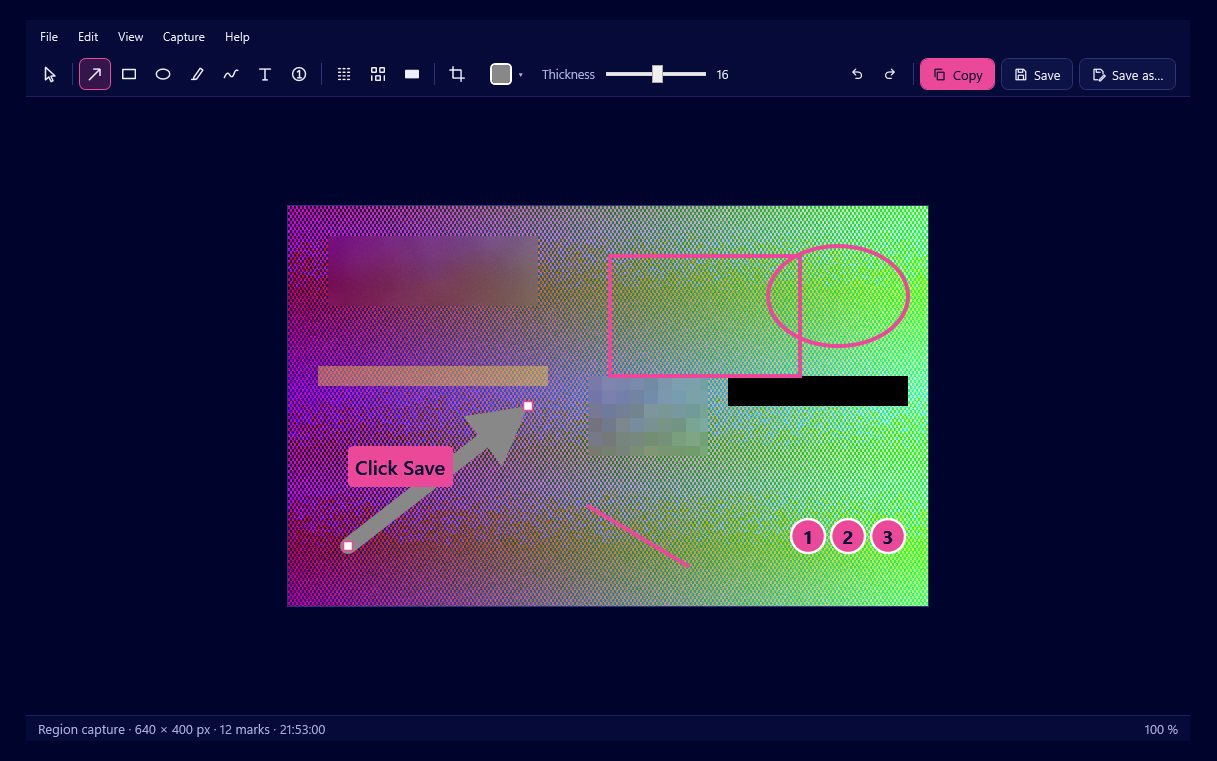
There is a text tool in the editor of Snap by Zaweba for exactly this. Capture the screen, pick the text tool, click where the words should go and type, then choose a background for the text: filled, outlined, or plain with a halo around the letters. Enter finishes the text and Shift+Enter starts a new line inside the same box.
The background choice is what makes the label readable. Screenshots are busy, and black text dropped onto a dark toolbar or a photo simply vanishes.
Adding a label, step by step
Take a capture first. Print Screen gives you a region, Alt+Print Screen the active window and Ctrl+Print Screen the full screen. The editor opens on its own.
Select the text tool and click on the picture where you want the label. Type your words. If you need a second line, press Shift+Enter; when the text is finished, press Enter. The text is now a mark that sits on top of the capture, not part of the pixels, so you can select it, drag it to a better place, resize it with its handles or nudge it with the arrow keys.
Pick a colour from the editor's colour picker, which offers presets, any colour typed as a hex value, and the last eight colours you used. The text tool remembers its size, so the next label comes out the same and a set of screenshots looks consistent.
Choosing a background
A filled background puts the text on a solid block. It is the safest choice over photos, gradients and crowded interfaces, and it reads well when the screenshot is shrunk in an email.
An outlined background draws a frame around the text without hiding much of the picture behind it. It suits labels placed over plain areas where you still want the screenshot to show through.
Plain text with a halo keeps the letters on their own but surrounds them with a soft edge in a contrasting tone, so they lift off any colour beneath. Use it when a block would cover something the reader needs to see.
Writing labels that help
Short beats long. A label of two to five words, such as "Click Save here" or "This total is wrong", does more than a sentence, and the explanation can go in the email itself. Put the label close to what it describes, and if the gap is large, add an arrow from the text to the spot. Snap's arrows hold to 45 degree steps when you hold Shift, which keeps them tidy.
When you are explaining several steps, combine text with numbered markers. Drop 1, 2 and 3 on the places to click, and add one text box that says what the sequence achieves. The next number is always one past the highest, so you can add steps in any order.
Fixing text afterwards
Every mark stays editable until you export. If a word is misspelt or the label sits over something important, select it and change it. Undo and redo go back 200 steps. If you have already closed the editor, your last 50 captures are kept as editable .ozsnap files in the history, so you can reopen the screenshot from the tray, correct the text and copy it again.
Getting it out
Ctrl+C copies the finished picture to the clipboard, and Ctrl+S saves a PNG or JPG into Pictures\Snap by Zaweba. The text becomes part of the exported pixels, so it looks the same wherever the picture is pasted.

