
How to send a screenshot from Snap to Paint by Zaweba
With Paint by Zaweba installed, Snap by Zaweba shows an Edit in Paint button that saves a flattened PNG and opens it in Paint for detailed editing.
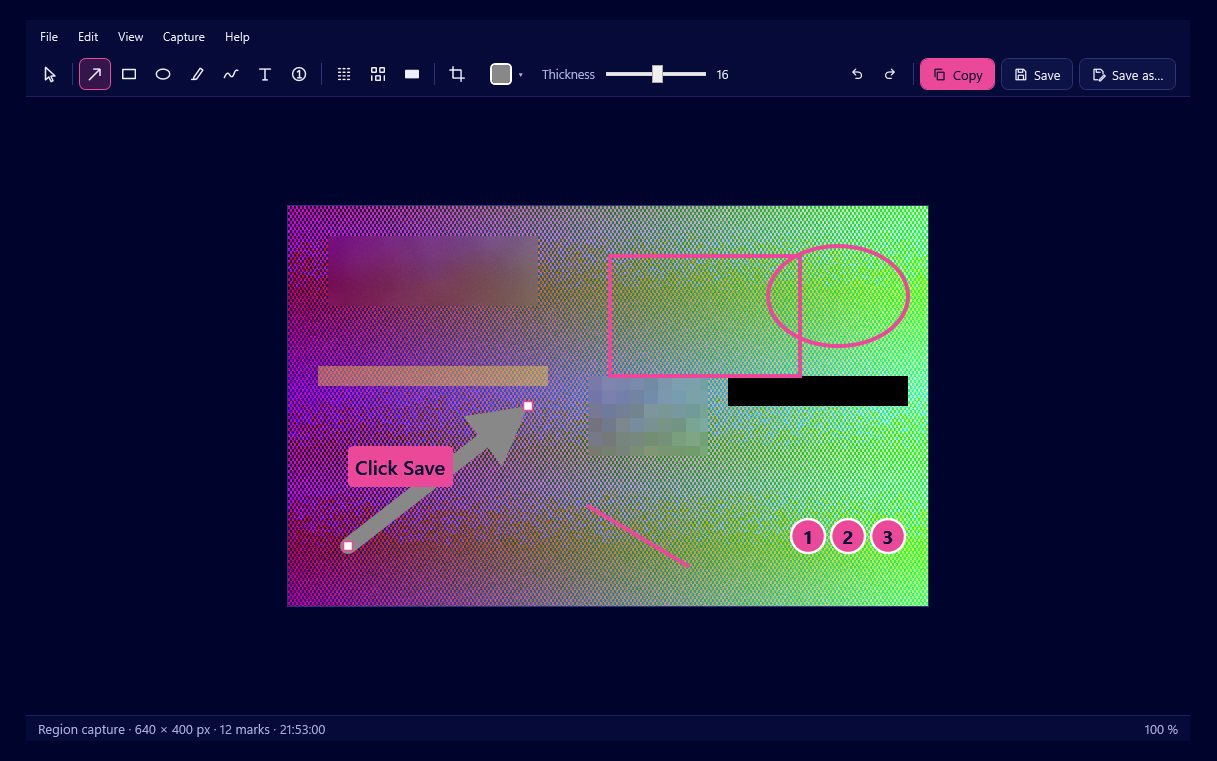
If Paint by Zaweba is installed, Snap by Zaweba's editor shows a button that sends your screenshot straight to it. Click it and Snap saves a flattened PNG of the capture, with your marks included, and opens that picture in Paint, where you can retouch the pixels themselves.
It is the right move when you need more than arrows and labels: removing an element, adjusting colours, or combining the screenshot with other pictures.
Sending it across
Capture the screen as usual with Print Screen for a region, Alt+Print Screen for a window or Ctrl+Print Screen for the full screen. Add any arrows, text, numbered markers and redactions in Snap first, because they are quicker to do there and they come across in the flattened picture.
Click the Edit in Paint button. Snap writes a PNG and Paint opens it. Make your changes in Paint and save from there.
If you do not see the button, Paint by Zaweba is not installed. Snap only shows it when Paint is present, which it learns from the Zaweba suite registry on your PC.
What to do in Snap and what to do in Paint
Snap's marks stay editable until you export. Arrows, boxes, highlights and text can be moved, resized and recoloured, and there are 200 steps of undo. That makes Snap the better place for anything you might adjust, such as where an arrow points or what a label says.
Paint works on the picture itself. Once the PNG is flattened, the marks are part of the pixels. Use Paint for jobs Snap does not try to do: painting over a stray notification, cleaning up a background, joining two screenshots into one image, or preparing a picture for print.
A good order is to finish the explaining in Snap and the retouching in Paint.
Keeping an editable copy
Because the PNG sent to Paint is flattened, keep the original in Snap as well. Your last 50 captures stay in Snap's history as editable .ozsnap files, and Save As can write an .ozsnap wherever you like. If you later need to change a label, reopen the capture in Snap, edit the mark, and send it to Paint again.
Privacy when retouching
Blur, pixelate and black out are applied to the actual pixels when Snap exports, and the flattened PNG it hands to Paint is an export. The hidden detail is gone from that file, which is what you want. Remember that the .ozsnap still holds the unblurred original, so share the PNG, not the .ozsnap.
Other ways to hand a capture on
Not every follow-up needs Paint. Ctrl+C copies the result to the clipboard as a PNG and bitmap for pasting into any program. Ctrl+S saves a PNG or JPG into Pictures\Snap by Zaweba. And if you want the words in a screenshot rather than the picture, Copy text (Ctrl+T) hands the capture to Read by Zaweba, when it is installed, which finds the text and copies it to the clipboard.
For a quick explanation, Snap alone is usually enough. When a picture needs real editing, the Paint button saves a round of saving, browsing and opening.

