
How to highlight text on a screenshot without hiding it
Use the highlighter in Snap by Zaweba: it marks lines at 40 per cent strength and does not darken where strokes overlap, so the words stay clear.
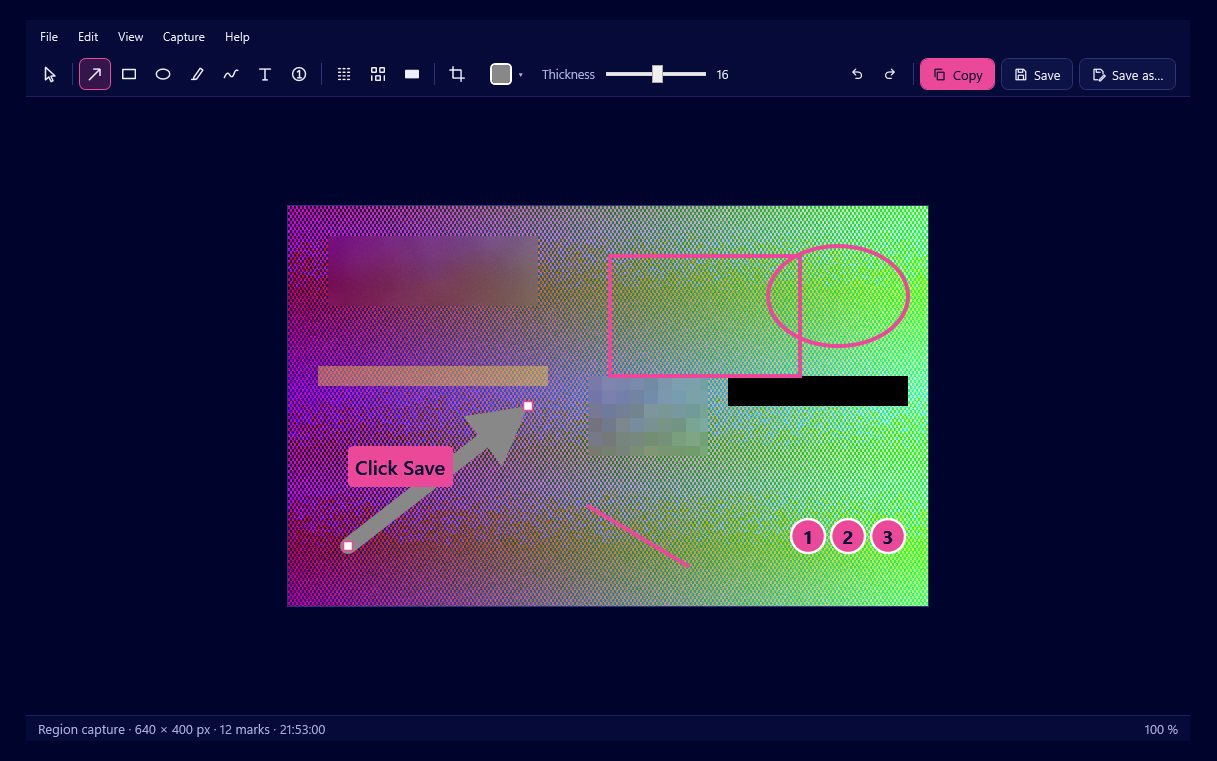
To highlight words on a screenshot, use the highlighter in Snap by Zaweba's editor. It lays colour down at 40 per cent strength, so the text underneath stays readable, and it does not get darker where two strokes overlap. Drag it across the line you want noticed, just as you would with a highlighter pen on paper.
That last detail is easy to overlook. With a simple semi-transparent brush, going back over a line or crossing two strokes leaves darker patches that look messy and can hide letters. Snap's highlighter keeps an even tint.
Marking the line
Capture the part of the screen with the text. Print Screen lets you drag a region, which is usually best for a document or a web page, because you can frame just the paragraph that matters. The magnifier and the arrow keys help when you want the edge close to a line without cutting it.
In the editor, choose the highlighter. Pick a colour from the picker: there are presets, any hex colour, and the last eight colours you used. Yellow is the classic choice on white pages; a soft green or pink can work better on a screenshot that is already yellowish.
Drag across the words. Hold the stroke steady along the line; if you go wrong, Ctrl+Z undoes it, and there are 200 steps of undo. Each stroke remains a mark that can be selected, moved or deleted until you save or export, so a highlight that sits a little high can be dragged into place rather than redrawn.
Highlighter or box
The highlighter is for drawing the eye to text while leaving it fully legible: a clause in a contract, an error message in a log, a figure in a spreadsheet. A rectangle is better when you want to point at an area, such as a group of buttons. An ellipse suits a single icon. Snap remembers colour and thickness separately for each tool, so switching between them does not undo your choices.
For a long passage, try highlighting only the words that matter rather than the whole paragraph. A reader's eye goes to colour, and if everything is coloured nothing stands out.
Adding a note beside it
A highlight often needs a word of explanation. Add a text box nearby with a filled, outlined or halo background so it reads on any picture, and a short arrow if the gap is wide. Numbered markers help when several highlighted lines should be read in order.
Hiding what should not be seen
Screenshots of documents often include names, addresses or account numbers next to the line you care about. Before you share, blur, pixelate or black out those parts. When you export, Snap applies those redactions to the actual pixels, so the hidden detail cannot be recovered from the PNG or JPG. Black out is the choice for short secrets that could be guessed from their shape.
Sharing the result
Press Ctrl+C to copy the picture as a PNG and bitmap, then paste it into an email, a chat or a document. Ctrl+S saves it into Pictures\Snap by Zaweba with a dated name. If you might want to change the highlight later, Save As also offers the editable .ozsnap format, and your last 50 captures stay in the history with every mark still editable.

