
How to repeat the same screenshot area every time
Press Shift+Print Screen in Snap by Zaweba to capture the same region you drew last time, ideal for before and after shots of the same spot.
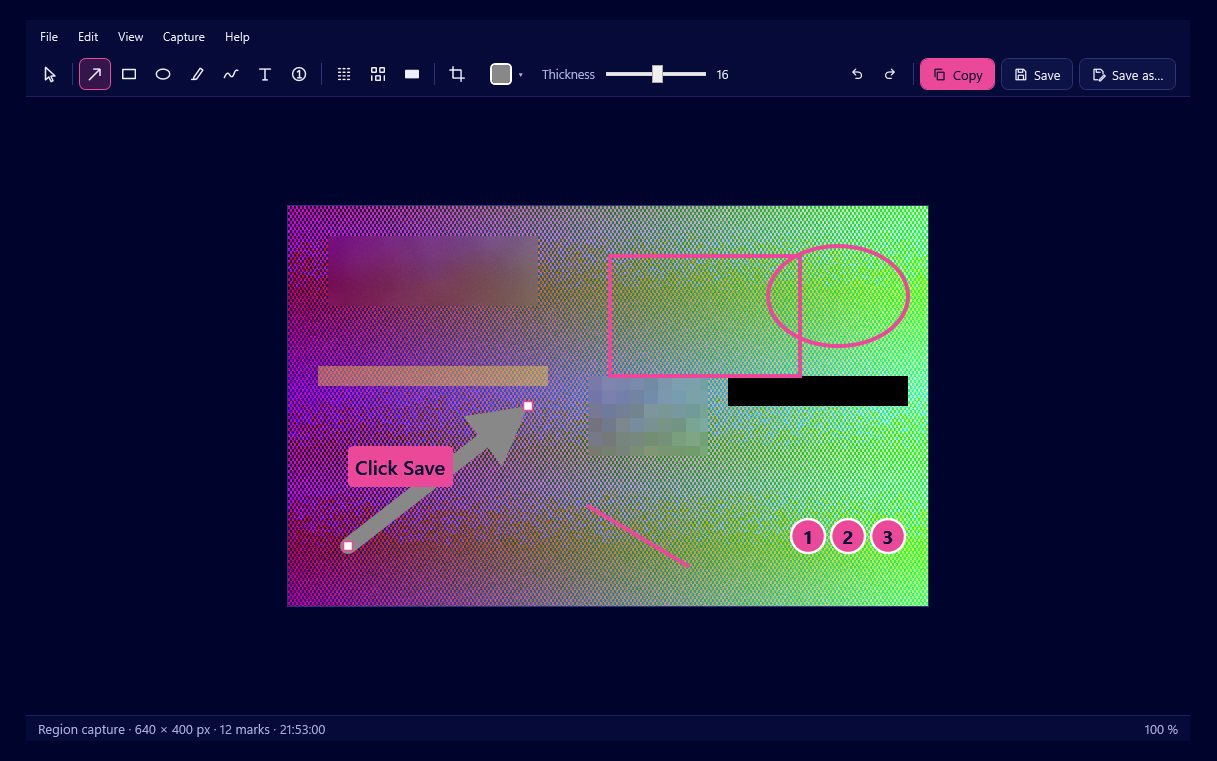
Press Shift+Print Screen. Snap by Zaweba captures exactly the region you drew last time, without asking you to drag again, and opens it in the editor. It is the quickest way to take a series of shots of the same part of the screen.
The region is remembered by position, so whatever is on screen in that rectangle when you press the keys is what you get.
Taking the matching shots
Take the first capture with Print Screen and drag the box around the area you care about. The magnifier and the arrow keys let you place each edge exactly: arrows move the selection one pixel, Shift and an arrow move it ten, and Enter takes it. Spending a moment on this first box pays off, because every repeat uses it.
Copy or save that first picture. Then change whatever you are documenting, such as a setting, a value or a layout, and press Shift+Print Screen. The second capture has the same size and position as the first, so the two line up perfectly side by side.
Repeat as often as you like. Each repeat uses the last region you drew with Print Screen, so draw a new box whenever you want a new area.
What it is good for
Before and after comparisons are the classic use. A bug report is far clearer with two identical frames, one showing the wrong behaviour and one showing it fixed. A design change reads better when the reader can flick between two pictures that do not jump about.
It also helps with sequences. If you are recording how a progress panel, a chart or a form changes over several steps, repeat capture gives you frames of identical size that can be laid out in a document or a slide without trimming.
And it saves time with recurring checks. If you capture the same dashboard tile or status area each morning, one keypress does it.
Making the series easy to follow
Mark each frame in the same way. Snap remembers the size of each tool, so arrows and text boxes come out matching from one capture to the next. Numbered markers are useful for labelling frames: put a 1 on the first and a 2 on the second, or label each with a short text box such as Before and After. The text tool's filled, outlined or halo backgrounds keep labels readable on any picture.
If the area contains anything private, blur, pixelate or black it out in each frame. Redactions are applied to the real pixels on export.
Saving a set
Ctrl+S saves each capture into Pictures\Snap by Zaweba with a dated name, which keeps a series in order by time. If you want to come back and adjust marks later, save as .ozsnap too, or rely on the history, which keeps your last 50 captures with every mark editable.
Changing the key
If Shift+Print Screen clashes with another program, open Settings from the tray and click the box for the repeat hotkey, then press a new combination. The status beside it shows Ready, In use by another program, or Off. Programs and scripts can also trigger a repeat capture from the command line with the repeat option, handy if you want to fire it from a macro keypad.

