
How to screenshot just one window on Windows
To capture one window, press Alt+Print Screen in Snap by Zaweba, or hover over the window during a region capture and click it.
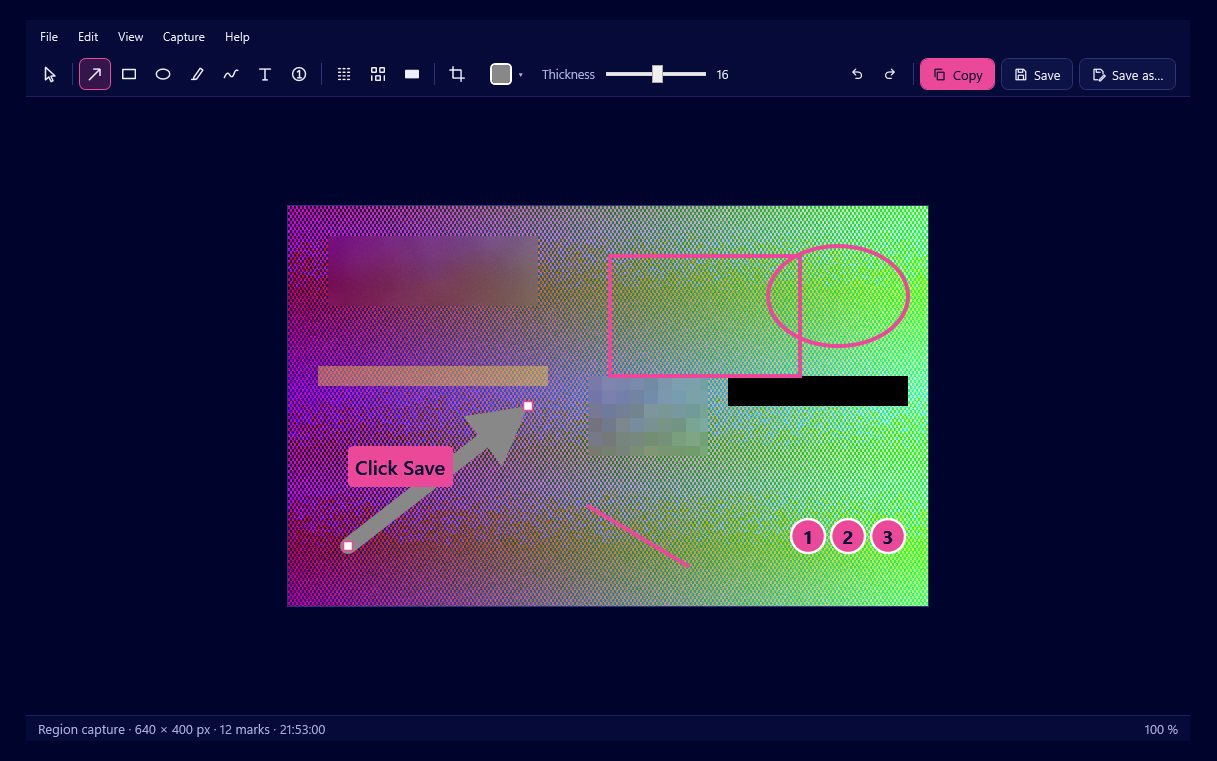
In Snap by Zaweba there are two ways to capture just one window. Press Alt+Print Screen and Snap takes the active window's visible frame straight away, or press Print Screen for a region capture, hover over the window you want until it is highlighted, and click. Either way the editor opens with only that window in it.
Both routes give you a clean picture of one program without the taskbar, the desktop or the other windows around it, which is usually what a bug report or a help email needs.
The quick way: Alt+Print Screen
Click into the window you want so that it is the active one, then press Alt+Print Screen. Snap captures the active window's visible frame. There is nothing to drag and nothing to aim, which makes it the fastest choice when the window is already in front of you.
Because it takes the visible frame, you get the window as you see it rather than a wider rectangle that includes an invisible border. If the window is partly off the edge of the screen, what is off screen cannot be captured, so move it fully into view first.
The aimed way: hover and click
Sometimes the window you want is not the active one, or you want to choose between a dialog and the main window behind it. Press Print Screen to start a region capture. The desktop freezes and dims across every monitor, and as you move the pointer Snap highlights the window under it. Click to take it. If the pointer is over bare desktop rather than a window, the whole monitor is highlighted instead, and clicking takes that monitor.
Since the picture is cropped from the frozen screen, what you get is exactly what you saw at the moment you pressed the key. Menus and tooltips that would close on a click are kept in the frozen image. If you change your mind, press Esc or right-click to cancel.
When a drag suits better
A window is not always the right frame. If you only need one panel or a single button with a little context around it, drag a rectangle instead of clicking. A live label shows the width and height as you go, and the magnifier at eight times lets you place each edge on the exact pixel, with the arrow keys moving it one pixel at a time (or ten with Shift) and Enter taking the capture.
For a series of before and after shots of the same spot, Shift+Print Screen repeats the last region without asking again.
After the capture
The editor opens with your window. Add an arrow pointing at the button that matters, a box around the field in question, or a numbered marker for each click in order. If the window shows anything private, such as an email address or an account number, blur, pixelate or black it out. Those redactions are applied to the real pixels when you export, so nobody can recover the detail from the file you send.
Press Ctrl+C to copy the result to the clipboard as a PNG and bitmap, ready to paste into an email, a chat or a ticket. Ctrl+S saves it into Pictures\Snap by Zaweba with a dated name. Note that the mouse pointer is not included in captures, so use an arrow to show where to click.
If Alt+Print Screen does nothing
Open Settings from the tray menu. Each hotkey shows its state: Ready, In use by another program, or Off. If another program has claimed Alt+Print Screen, click the hotkey box and press a different combination. While that box has focus the hotkeys are released, so pressing the keys there sets them rather than starting a capture. The hover and click method always works as a fallback.

