
Is there a Mac or Linux version of Snap by Zaweba?
Yes. Snap by Zaweba also runs on macOS and Linux, with the same files, settings and capture history, using the menu bar or system tray.
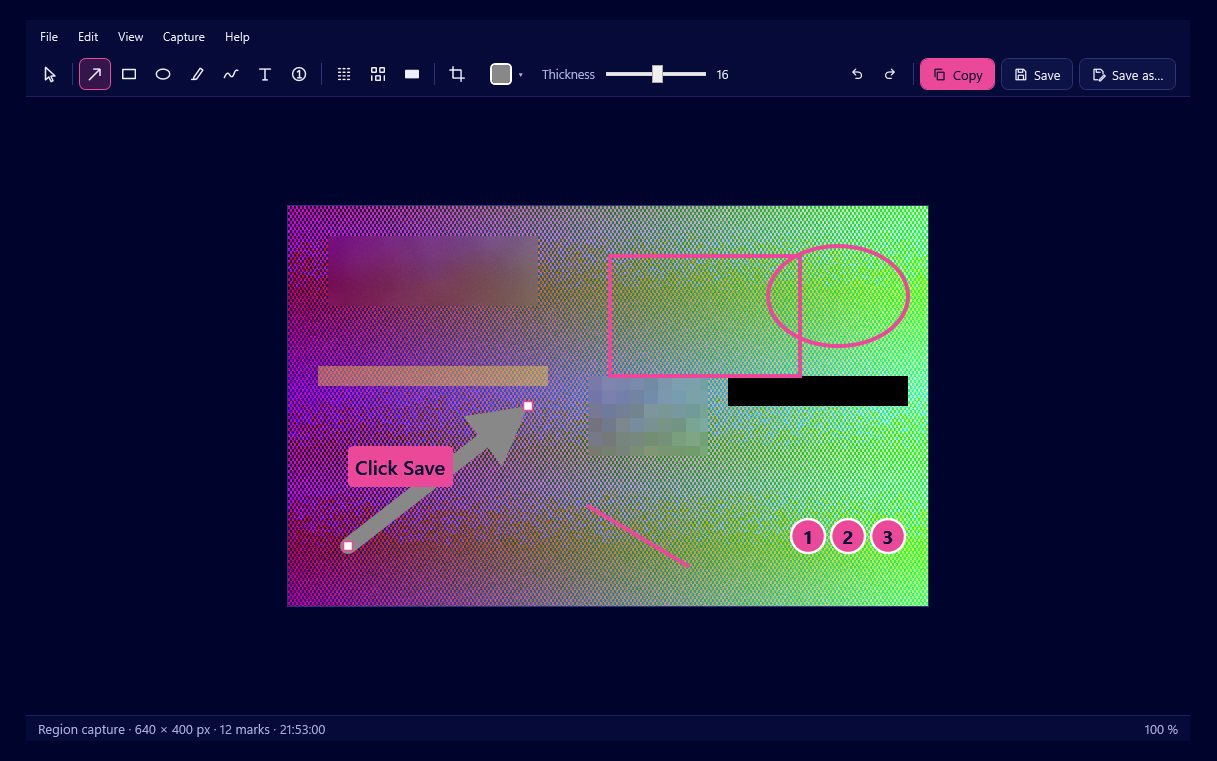
Alongside Windows, Snap by Zaweba runs on macOS and Linux. Version 1.0.6 uses the same files, settings and history on every system, so an .ozsnap made on one computer opens on another. On a Mac it lives in the menu bar; on Linux it uses the system tray.
The editor is the same everywhere. What changes from one system to the next is how the capture is started and how the area is picked.
How capturing differs
Hotkeys depend on the system. On a Mac, Shift+Cmd+2 captures a region. On Linux with X11, Print Screen does the job, as on Windows. On Linux with Wayland, programs are not allowed to grab global keys in the same way, so you set up a desktop shortcut that runs Snap's capture command.
The region picker varies too. On X11, Snap shows its own region picker. On macOS and on Wayland, it uses the system's own picker, which is how those systems prefer screen capture to work. Either way, the area you choose lands in Snap's editor.
What is the same
Once the capture is in the editor, everything you know from Windows applies. Arrows, rectangles and ellipses, the highlighter and pen, text boxes with filled, outlined or halo backgrounds, and numbered markers for step-by-step guides are all there. Blur, pixelate and black out hide private details, and exports apply them to the actual pixels so the detail cannot be recovered. The crop tool keeps the original in the editable file.
Copy and save work as before, with PNG, JPG and .ozsnap. The history of your last 50 captures keeps every mark editable.
Moving between computers
Because files, settings and history are shared in form, you can capture on a Windows PC at work and finish the marks on a Mac at home, or the other way round, by carrying the .ozsnap file across. Keep in mind that an .ozsnap holds the original, unblurred capture, so treat it as a working file and share the exported PNG or JPG.
Choosing the right download
Get the version for the system you are using from Snap's page on the Zaweba site. It is free software under the EULA on every system, with no account and no cloud.
Windows-only extras
A few features on Windows rely on Windows itself. The Snipping Tool warning, which tells you when Windows 11 has given the Print Screen key to Snipping Tool and offers to let Snap use it, has no meaning elsewhere. Snap's links to Paint by Zaweba and Read by Zaweba depend on those apps being installed alongside it, so check that they are available on your system before relying on them.
Getting started on Mac or Linux
Install Snap, start it, and look for the icon in the menu bar or tray. On a Mac, try Shift+Cmd+2 and drag a box. On X11, press Print Screen. On Wayland, open your desktop's keyboard shortcut settings and add a shortcut that runs Snap's region capture command; the same command line options as on Windows (region, full, window or repeat) let you set up shortcuts for each kind of capture.

