
Drag and drop ZIP files to open them
Drag a .zip onto the ZIP by Zaweba window to open it at once, or drop other files there to start a new archive. Here is how it works.
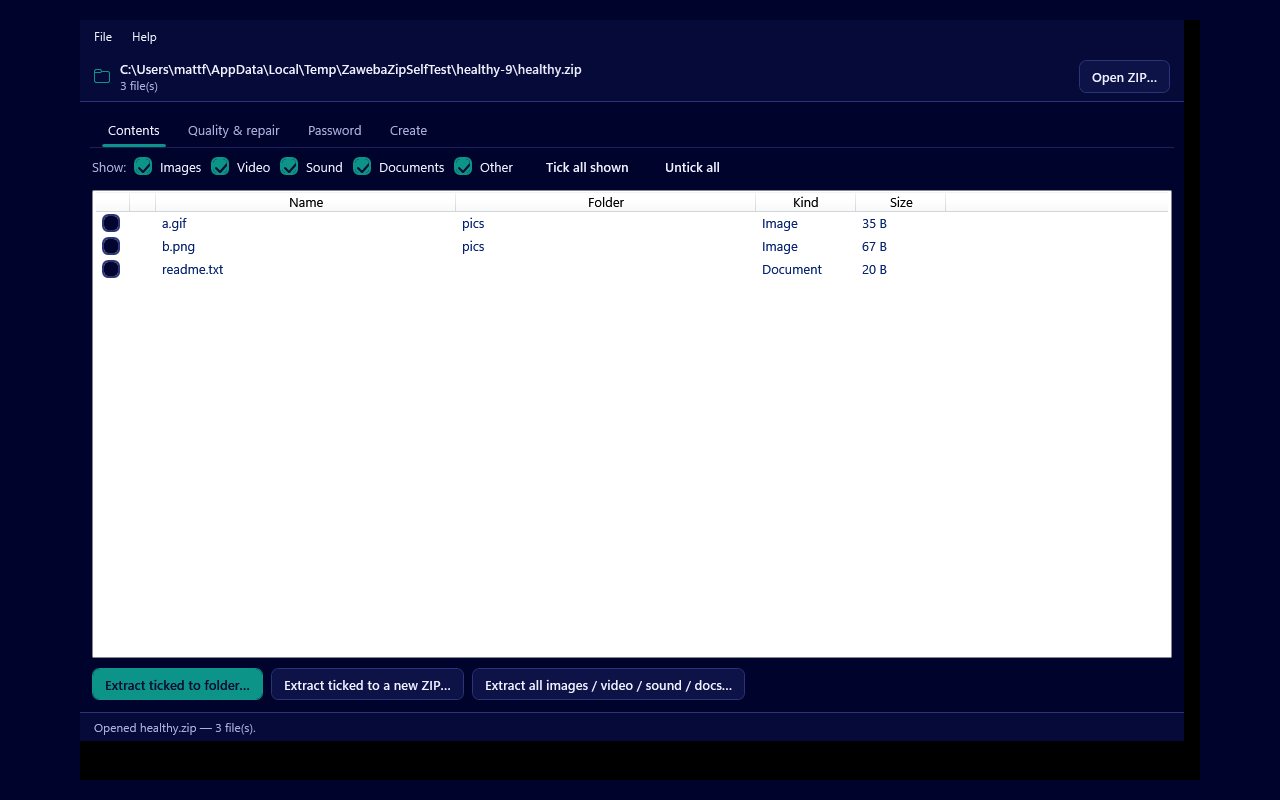
Dragging a .zip file onto the ZIP by Zaweba window opens it straight away, ready to browse in the Contents tab. Drop other kinds of file there instead and the app starts a new archive with them, so the same gesture covers opening and making ZIPs. It is free software under the EULA and runs on your own PC.
For many people dragging is the most natural way to work, because the archive is usually already sitting in a folder or on the desktop in front of them.
Dropping a ZIP to open it
Have ZIP by Zaweba open, then drag the .zip file from File Explorer or the desktop and let go over the window. The Contents tab fills with every file inside, showing its name, folder, kind and size, and the header shows the archive's path and a short summary.
From there you can work as normal. The Show tick boxes for Images, Video, Sound, Documents and Other narrow the list by kind. Tick the files you want, then use Extract ticked to folder or Extract ticked to a new ZIP, or take a whole kind at once with the Extract all images / video / sound / docs button.
If the archive is protected, the encrypted entries carry a padlock and the app takes you to the Password tab. Type the password there and the files become available in the other tabs.
Dragging is not the only way in, of course. File, then Open ZIP, or Ctrl+O, or the Open ZIP button all do the same job, which is handy when the archive is buried a few folders deep and it is quicker to browse to it than to find it in a window.
Dropping files to make a new archive
Drop anything that is not a ZIP, such as a handful of photos, a document or a folder, and ZIP by Zaweba starts a new archive with it instead of trying to open it. You end up on the Create tab with your files in the list.
The list shows the name each item will have inside the ZIP and where it comes from on your drive. A folder keeps its structure, so subfolders come through as they are. You can keep adding with the buttons for files and folders, remove anything selected by mistake, or clear the list and start again.
Choose a compression level before you create the archive. Normal suits most jobs, Smallest squeezes harder but is slower, Fastest favours speed, and Store adds files with no compression at all, which is sensible for photos and videos that are already compressed. Then press Create ZIP. The archive is written unencrypted, so whoever you send it to can open it with any program.
If you prefer the menu, File, then New ZIP from files, or Ctrl+N, gets you to the same place.
Small things that save time
Gather what you want to zip into one folder first and drop the folder, rather than dragging files over in several goes. The structure is kept, and it is easier to check what went in.
When you drop an archive you have just received, run Check quality on the Quality and repair tab before extracting anything important. It decodes every file and confirms the checksum the ZIP stored for it, then marks each one Good, Corrupt, Damaged, Unreadable, Encrypted or Empty, so you know whether the download arrived intact.
If dropping a ZIP does not open it and the archive seems broken, the Salvage from a damaged ZIP tool on the same tab is the next step. It scans the raw bytes for each stored file and recovers what it can into a new, clean archive.
It all happens on your own computer, with no account and nothing sent anywhere. Drag a ZIP in to see inside it, drag other files in to make one, and ZIP by Zaweba handles the rest with the same window.

