
How to open a password protected ZIP when you know the password
Open a password protected ZIP in ZIP by Zaweba: go to the Password tab, type the password, and every file is ready in the other tabs.
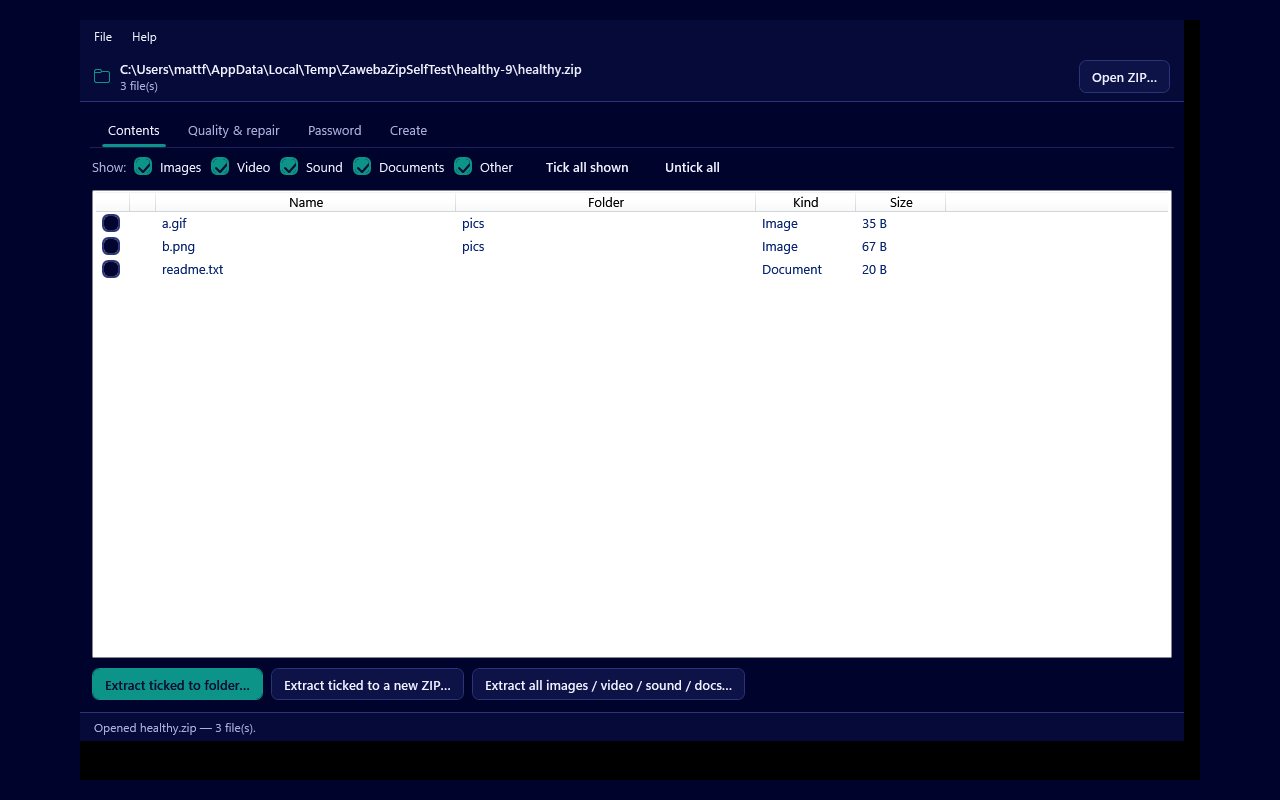
When you know the password, opening a protected ZIP takes a few seconds in ZIP by Zaweba. Open the archive, go to the Password tab, type the password and click the button that applies it, and the files become available in the other tabs, ready to browse, extract or check. It works with archives protected by the older ZipCrypto scheme and with WinZip AES.
The app is free software under the EULA, runs on your own PC and needs no account, so the archive and its password never leave your computer.
Opening the archive
Start the way you would with any ZIP. Use File, then Open ZIP, or press Ctrl+O, or click the Open ZIP button, or simply drag the .zip file onto the window. The header shows the archive's path and a short summary of what is inside.
An encrypted archive is easy to spot. In the Contents tab each entry that is protected carries a small padlock beside its name, folder, kind and size. You can see what is in the archive before you type anything, which is handy when you have several protected files and want to be sure you have the right one before hunting for the password.
Opening an encrypted ZIP also takes you to the Password tab on its own, so you are usually looking at the right place straight away.
Typing the password
In the Password tab there is a place to type the password and a button that applies it. Type it carefully. ZIP passwords are case sensitive, so Holiday2019 and holiday2019 are different passwords, and a stray space at the end counts as a character. If you copied the password from an email or a note, paste it rather than retyping it, and check nothing extra came along with it.
Once the password is accepted, switch back to the Contents tab. The files are now available like those in any other archive. Tick the ones you want and use Extract ticked to folder, or Extract ticked to a new ZIP if you want to pass part of the archive on. The Show tick boxes for Images, Video, Sound, Documents and Other narrow a long list down by kind, and the Extract all images / video / sound / docs button takes a whole kind in one go.
When the password is not accepted
Most failures are small. Check Caps Lock, try the variations you might have used (a capital first letter, a year on the end, an exclamation mark) and make sure you are using the password for this archive and not another one sent at the same time.
If the archive is yours and the password really has gone, the same tab has a recovery tool. It is only for ZIP files you own or are authorised to open, and it tries likely candidates: words you remember with common variations, a built-in list of common passwords, an optional wordlist file and a bounded brute force over short passwords. It shows a live count and rate, you can stop it at any time, and it says honestly that a strong password you remember nothing about may not be recoverable. A password it finds can be used straight away.
If the archive belongs to someone else, ask them for the password. That is quicker and it is the right thing to do.
After the files are open
Protected archives are often the important ones, so it is worth running Check quality on the Quality and repair tab while the archive is open. It decodes every file, confirms the checksum the ZIP stored for each one and structure checks images, then reports each file as Good, Corrupt, Damaged, Unreadable, Encrypted or Empty with a short detail line. A clean report means what you extract is what was zipped.
One thing to know before you rely on the app for new archives: the ZIPs it creates are plain and unencrypted, the kind every program opens. If you need to send something protected, keep the original protected archive or use another program to add a password. Reading protected archives is fully supported; making them is not something the app does.
For everyday use the whole job is short: open the file, type the password on the Password tab, then take what you need from the Contents tab. ZIP by Zaweba keeps it all on your own machine from start to finish.

