
Opening a password-protected ZIP in ZIP by Zaweba
When you know the password to a protected ZIP, type it on the Password tab in ZIP by Zaweba and every file becomes available to browse, check and extract.
Plenty of ZIP files arrive with a password on them. An accountant sends year-end papers that way, a school sends a pack of forms, or you set one yourself on an archive of scans years ago and wrote the word down somewhere safe. When you have the password, ZIP by Zaweba gets you into the archive in a few seconds, and from then on it behaves like any other ZIP.
This article covers the everyday case: you know the password and simply want the files. Recovering a password you have forgotten is a separate job with its own tool, and it gets a mention at the end.
What happens when you open a protected archive
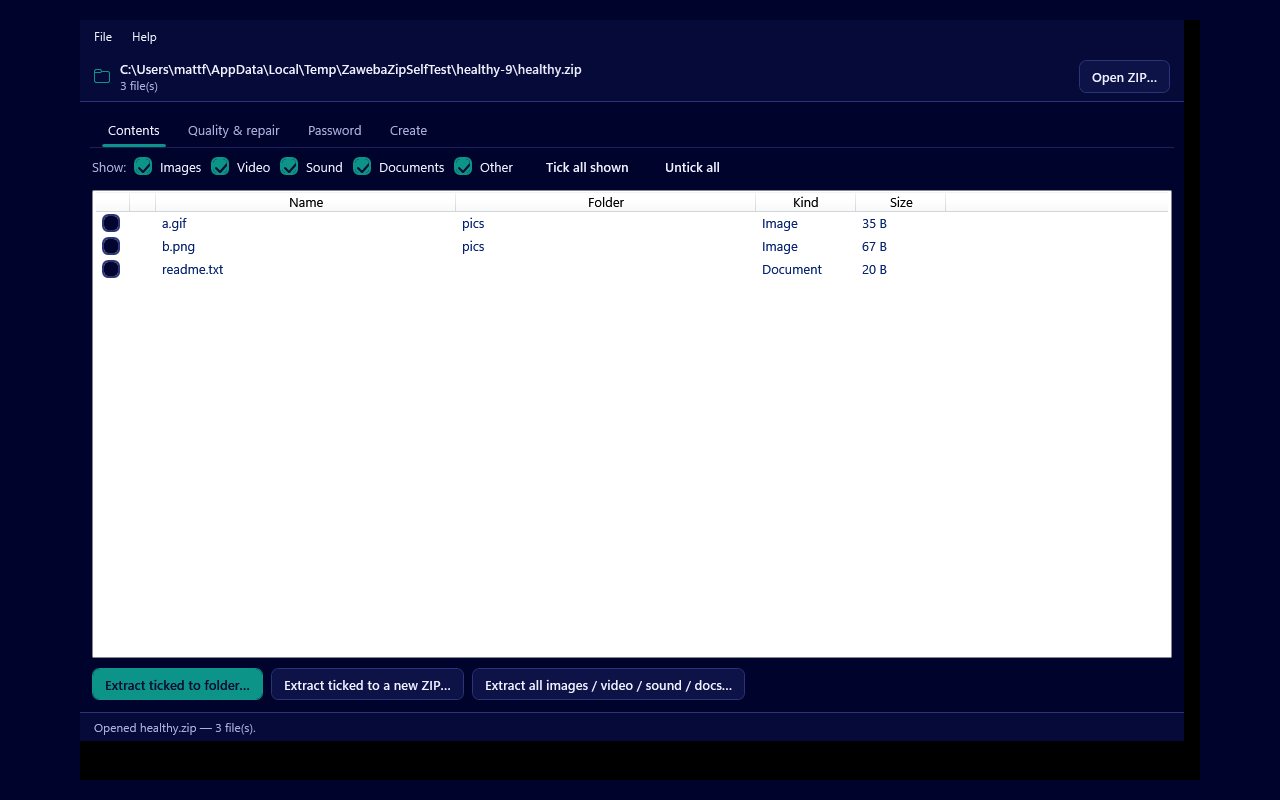
Open the ZIP as you would any other, with Open ZIP on the File menu, Ctrl+O, the Open ZIP button or by dragging the file onto the window. ZIP by Zaweba notices the encryption and takes you straight to the Password tab rather than leaving you to wonder why nothing will extract. Encrypted entries also carry a padlock in the Contents list, so you can see at a glance which files are protected. Some archives protect every file, others only a few, and the padlocks tell you which kind you are holding.
On the Password tab, type the password into the box and confirm it. If it is right, the files become available in the other tabs. You can go back to the Contents tab, filter by kind, tick what you need and extract it to a folder or into a new ZIP, exactly as you would with an archive that never had a password at all.
Which kinds of protection it reads
ZIP files can be protected in more than one way. The older method, often called ZipCrypto, is the one many tools used for years and is still common in archives made by default settings. The stronger method is WinZip AES, which newer archive programs tend to offer. ZIP by Zaweba reads both, so it does not matter which program made the archive or which option the sender ticked.
There is one thing to know about the other direction. New archives that ZIP by Zaweba makes are plain and unencrypted, the kind every program on every computer opens. If you take files out of a protected archive and zip them up again in the Create tab, the new ZIP has no password. That is handy for your own working copies, but if the contents are private, keep the new archive somewhere private too.
Getting the most from the files once you are in
Once the password has been accepted, the rest of the app is open to you. Two jobs are worth doing straight away with anything important.
The first is a quality check. On the Quality and repair tab, Check quality decodes every file, confirms the checksum stored for it and structure-checks images, then reports each file as Good, Corrupt, Damaged, Unreadable, Encrypted or Empty. Run it before you rely on the contents, especially for an archive that has been emailed about or kept on an old stick. If a file still shows as Encrypted after a check, the password has not been accepted for that entry, and it is worth trying again.
The second is taking out only what you need. A pack of documents might hold a dozen files when you only want two. Tick those two and use Extract ticked to folder, or Extract ticked to a new ZIP if you want to pass just those files on to someone else.
When the password is not accepted
Most failures are small. Passwords are case sensitive, so check Caps Lock first. Copying a password from an email can pick up a space at the start or end, so type it by hand if pasting fails. If the sender wrote it in a message, look for a letter O that might be a zero, or a lower case l that might be a capital I.
If none of that works and the archive is one you made yourself, the Password tab also has a recovery tool. It tries the words you remember with common variations, a built-in list of common passwords, a wordlist file you choose and a bounded brute force over short passwords. It is meant for your own archives, or ones you are authorised to open, and it says honestly that a strong password you remember nothing about may not come back. If it does find the password, you can use it to open the archive straight away.
A habit worth keeping
When a password does work, write it down somewhere sensible alongside a note of what the archive holds. ZIP by Zaweba runs entirely on your own PC and sends nothing anywhere, so the password and the files stay with you, but it cannot remember the password for you next year.

