
A ZIP tool that extracts just the video or sound files
ZIP by Zaweba filters an archive by Video or Sound, so you can extract just the clips or recordings in one click or tick the ones you want.
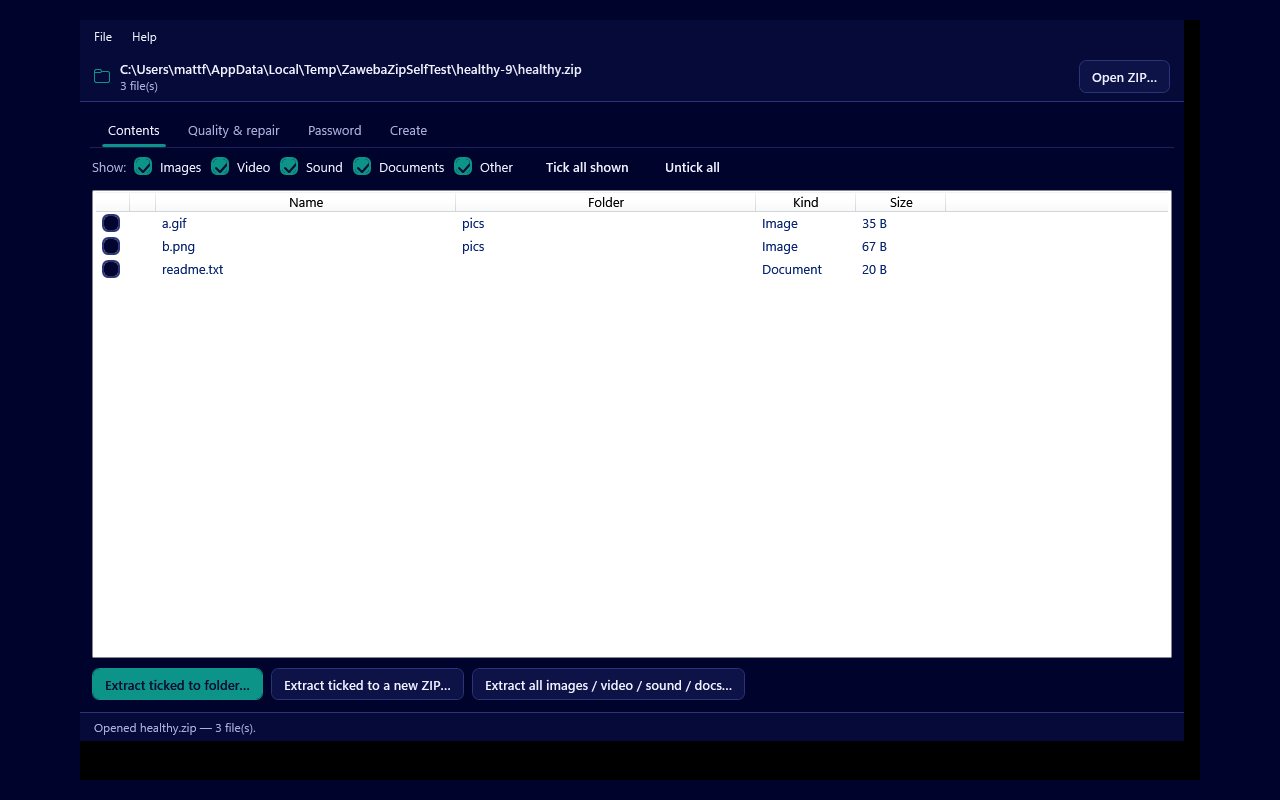
A ZIP tool that sorts an archive by kind saves you unpacking everything just to find the clips you want, and ZIP by Zaweba does exactly that. Tick Video or Sound in the Contents tab to show only those files, then extract the ones you tick, or use the Extract all images / video / sound / docs button to take every video or every sound file in one go. It runs on your own PC, free and offline.
This is handy for the kind of archive that arrives with everything mixed together: a shared folder from a family event, a project handed over by a colleague, a download that bundles recordings with notes and pictures.
Showing only the video or sound
Open the archive with File, then Open ZIP, with Ctrl+O, or by dragging it onto the window. The Contents tab lists every file inside with its name, folder, kind and size.
Above the list are Show tick boxes for Images, Video, Sound, Documents and Other. Untick the ones you do not want and the list narrows to match. To see only the clips, leave Video ticked on its own. For voice notes, music and other recordings, leave Sound. You can also leave both on if you want every piece of media but none of the paperwork.
The kind of each file is decided by its extension, so a file called interview.mp3 counts as sound and holiday.mp4 counts as video. A file with an unusual or missing extension may land under Other, so if something you expected is not showing, tick Other and have a look.
Taking the files out
There are two ways to finish, depending on whether you want everything of that kind or just some of it.
For everything, the Extract all images / video / sound / docs button picks a whole kind at once and extracts it, without you ticking files one by one. It is the quickest route when an archive holds dozens of clips and you want them all in one folder.
For a selection, tick the files you want in the filtered list. Tick all shown ticks everything the filter is currently showing, and Untick all clears it, so a good pattern is to filter to Video, press Tick all shown, then untick the few you do not need. When the ticks are right, Extract ticked to folder puts them in a folder you choose.
If you are passing the files on rather than keeping them, Extract ticked to a new ZIP writes only the ticked files into a fresh archive. That is useful when someone has asked for just the recordings from a large archive and would rather not download the rest.
Getting it right first time
The tick boxes only work on what the filter is showing, which is what makes them quick, but it also means a file hidden by the filter will not be ticked by Tick all shown. Check the filter before you extract if you want to be sure nothing was missed.
Video files are large and already compressed, so extracting them is mostly a matter of disk space. Make sure the folder you pick has room, especially for a long run of camera clips.
If the archive is protected, the entries show a padlock and opening it takes you to the Password tab. Type the password there and the files become available to filter and extract as normal.
Before you rely on the copies, run Check quality on the Quality and repair tab. It decodes every file and confirms the checksum the ZIP stored for it, then reports each one as Good, Corrupt, Damaged, Unreadable, Encrypted or Empty. A recording that fails its checksum was damaged after it was zipped, and it is better to know that before you delete the archive.
Going the other way
Sometimes the job is reversed and you want to gather media into an archive. The Create tab, or File then New ZIP from files with Ctrl+N, takes files and whole folders and keeps the folder structure. For video and sound that is already compressed, the Fastest or Store compression setting usually makes more sense than Smallest, which is slower and gains little on files like these.

