
Can I unzip and repair ZIP files offline without uploading?
Yes. ZIP by Zaweba unzips, checks, repairs and salvages ZIP files on your own PC, with no account and no upload to any website or cloud.
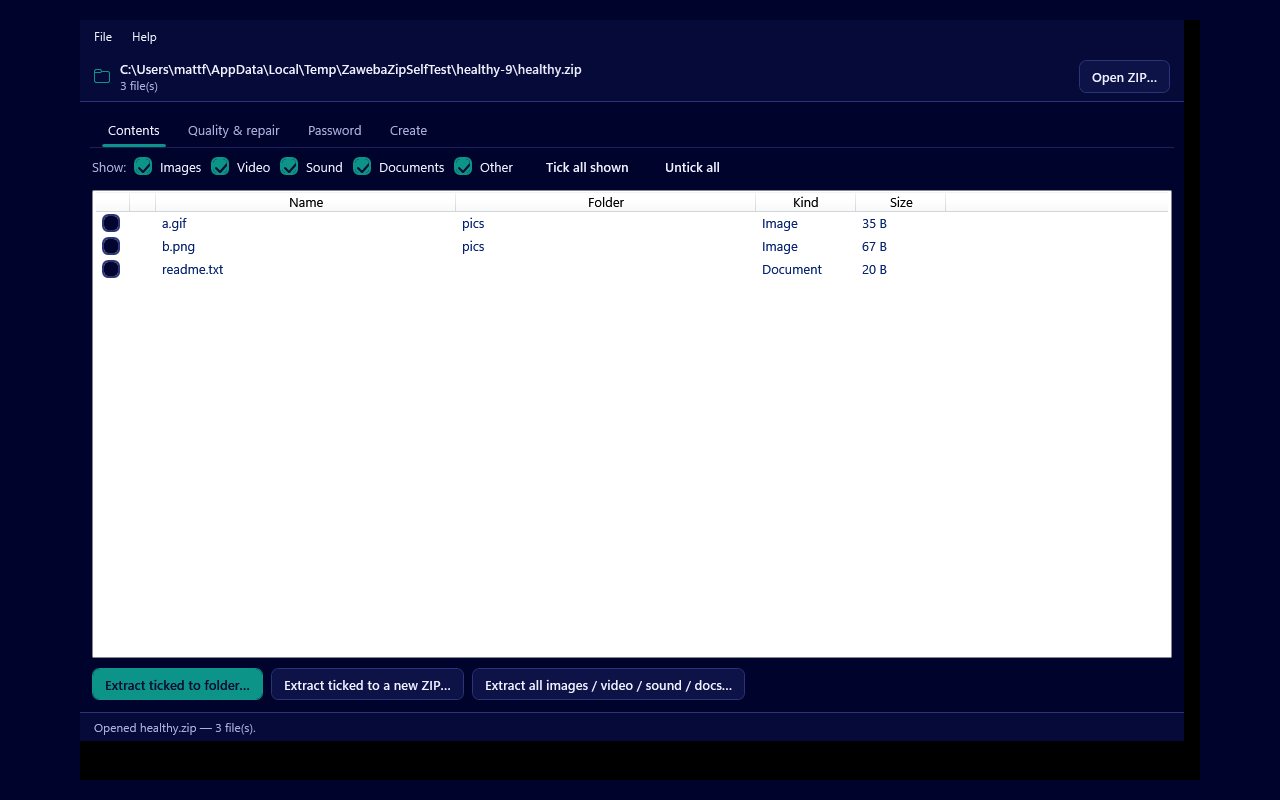
Everything in ZIP by Zaweba happens on your own computer, so you can unzip, check and repair archives without uploading a single file. There is no account to make and nothing is sent to a cloud service. It is free software under the EULA for Windows, with versions for Mac and Linux too.
That matters most for exactly the archives people want to repair: family photos, scanned documents, old work folders. Handing those to an unknown website just to find out whether they are damaged is a poor trade, and with a large archive the upload alone can take longer than the repair.
What you can do without going online
Unzipping is the everyday part. Open an archive with File, then Open ZIP, with Ctrl+O, or by dragging it onto the window. The Contents tab lists every file with its name, folder, kind and size. Filter it by Images, Video, Sound, Documents or Other, tick what you want and extract it to a folder or into a new ZIP. You never need to unpack the whole archive just to get at a few files.
The rescue tools live on the Quality and repair tab, and they all run locally too.
Check quality decodes every file and confirms the checksum the ZIP stored for it, which catches files damaged after they were zipped. It also structure checks images, which catches photos that were already damaged before they went in. Each file is reported Good, Corrupt, Damaged, Unreadable, Encrypted or Empty, with a detail line explaining why.
Save good files to a new ZIP then writes only the files that passed into a fresh, clean archive. The files are held in memory while it writes, so give a very large archive some care.
Repair damaged images to a new ZIP fixes the structural faults that stop a viewer opening an otherwise good picture. It adds a missing end marker to a JPEG or trims junk from its end, adds a missing trailer to a GIF, and recomputes wrong chunk checksums or adds a missing end chunk in a PNG. It never re-encodes, so it cannot invent missing pixels, and a badly truncated photo may still only be partly visible.
Salvage from a damaged ZIP is for an archive that will not even open. It scans the raw bytes for the header in front of each stored file and decompresses each one directly, going around the broken central directory. Recovered images that fail their checksum are repaired if they can be, and Save recovered files writes the lot to a new clean ZIP.
Why local repair is the safer habit
Every one of those tools writes its results to a new archive. Your original stays exactly as it was, so if you want to try another approach later you still have the untouched file to work from. That is easy to forget when a website hands back a download and the original has already been replaced on your drive.
Keeping the work local also means nothing is held anywhere else afterwards. There is no copy of your photos on a server, and no question of who can see them or for how long.
Password protected archives stay private as well. If you know the password, you type it on the Password tab and the files open in the other tabs. If the archive is yours and you have forgotten the password, the recovery tool on the same tab tries likely candidates on your own PC. It is only for archives you own or are authorised to open.
Knowing the limits before you start
Offline repair is honest about what it can do. Salvage lists entries that use a trailing data descriptor but skips them, and its raw reader handles 32 bit sizes only, so some unusual or very large archives will not give up every file. Image repair fixes structure, not missing picture data.
Even so, a check followed by a repair or a salvage brings back a great deal from archives that looked lost, and you can do all of it at the kitchen table with the network cable out. A sensible order is to check first, save the good files, repair the images that fail, and only reach for salvage when the archive will not open at all.

